
English
The platform and single project
The .NET MAUI platform
.NET MAUI (.NET Multi-platform App UI) is a framework for creating applications with a single codebase in C# and XAML markup that run on Android, iOS, macOS, and Windows (https://learn.microsoft.com/dotnet/maui/what-is-maui). It is the successor of Xamarin.Forms: support for all Xamarin SDKs ended on May 1, 2024, and new .NET mobile applications are created with MAUI. Unlike WPF (Topics 12–14), which runs only on Windows, a MAUI application from a single project is built for each platform separately and uses its native interface elements: a button on Android looks like an Android button, and on Windows like a Windows button.
The minimum platform versions for .NET MAUI 10 are given in Table 15.1 (https://learn.microsoft.com/dotnet/maui/supported-platforms). There is no official support for Linux as a target platform: on Linux you can only develop applications for Android.
Table 15.1. .NET MAUI 10 target platforms
| Platform | Minimum version | Where to build and run |
|---|---|---|
| Android | 5.0 (API 21) | Windows, macOS, Linux; an emulator or a phone |
| iOS | 12.2 | requires a Mac with Xcode; from Windows through a paired Mac |
| macOS (Mac Catalyst) | macOS 12 | only on a Mac |
| Windows (WinUI 3) | Windows 10 1809, Windows 11 | only on Windows |
Architecture and handlers
An application works with cross-platform MAUI classes: Button, Label, CollectionView. Each such element has a handler – a class that creates the platform's native element and transfers property values to it (Fig. 15.1). For example, ButtonHandler creates a MaterialButton on Android, a UIButton on iOS, and a WinUI library Button on Windows. The same .NET 10 runtime and class library run under all platforms, so model classes, HttpClient, LINQ, and System.Text.Json are used the same way as in console programs (https://learn.microsoft.com/dotnet/maui/user-interface/handlers/).
Fig. 15.1. .NET MAUI application architecture
Support. .NET MAUI 10 was released on November 11, 2025, together with .NET 10, but the MAUI support rules differ from .NET LTS support: each MAUI version is supported for 6 months after the next one is released. For MAUI 10 the end of support is May 11, 2027, so projects should be moved to new versions in time (https://dotnet.microsoft.com/platform/support/policy/maui).
Installation
Visual Studio 2026 requires the .NET Multi-platform App UI development workload (Tools → Get Tools and Features…, Fig. 15.2). It installs the MAUI SDK, the Android SDK, OpenJDK, and the Android emulator. Without Visual Studio, MAUI is installed with a dotnet CLI command and checked with the workload list (https://learn.microsoft.com/dotnet/maui/get-started/installation):
powershell
dotnet workload install maui
dotnet workload list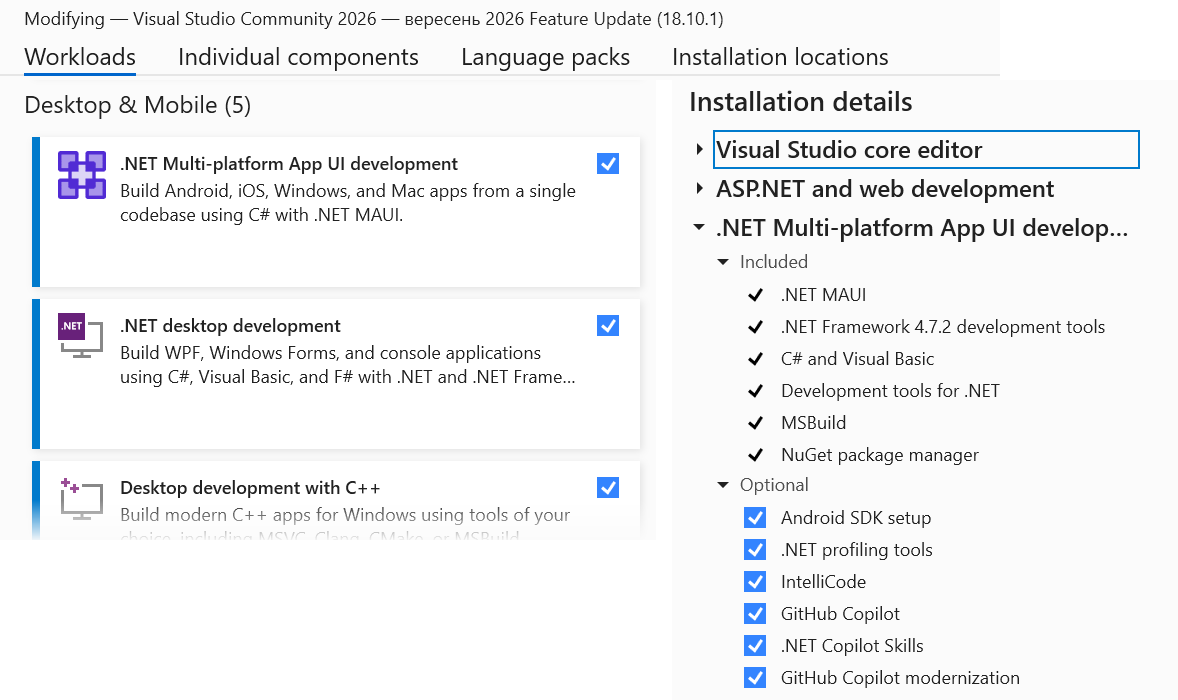
Fig. 15.2. The .NET Multi-platform App UI development workload
The single project and running the application
Project structure
A project is created from the .NET MAUI App template (File → New → Project…, search for maui) or with the command dotnet new maui -n Notes. The --sample-content parameter adds a demo application with MVVM and a database to the template. MAUI uses a single project: one .csproj file contains the shared code for all platforms, and the platform code lives in the Platforms folder (Fig. 15.3) (https://learn.microsoft.com/dotnet/maui/fundamentals/single-project).
Fig. 15.3. The structure of a .NET MAUI single project
The project file contains the UseMaui property and lists the platform target frameworks in TargetFrameworks: net10.0-android, net10.0-ios, net10.0-maccatalyst, and (only on Windows) net10.0-windows10.0.19041.0. When building for Android, only the files from Platforms/Android are compiled, and the images from Resources/Images are scaled to the required resolutions. The .NET 10 template also sets MauiXamlInflator = SourceGen (XAML is converted to C# at compile time), WindowsPackageType = None (the Windows version runs as an ordinary .exe without an MSIX package), the ApplicationTitle name, and the unique ApplicationId identifier.
Entry point
The startup code of each platform (MainActivity on Android, App in Platforms/Windows) calls the shared MauiProgram.CreateMauiApp method. It configures the application builder (MauiAppBuilder) the same way as Host in Topic 6: MauiApp.CreateBuilder(), registering the application class with UseMauiApp<App>(), fonts with ConfigureFonts, services with builder.Services, and logging with builder.Logging.AddDebug() (only in the Debug configuration), and finally builder.Build().
The App class (the App.xaml and App.xaml.cs files) merges the resource dictionaries and creates a window with the AppShell shell. The Application.MainPage property has been obsolete since .NET 9, so the window is returned by the overridden method protected override Window CreateWindow(IActivationState? activationState) with the expression new Window(new AppShell()).
Running on Windows and Android
The target platform is chosen in the drop-down list of the Visual Studio run button (Fig. 15.4): Windows Machine runs the application as a Windows program, the Android Emulators section runs it in an emulator, and Android Local Devices on a connected phone. Windows Machine gives the fastest development cycle: it needs no extra setup and works on any computer with Windows 10/11.
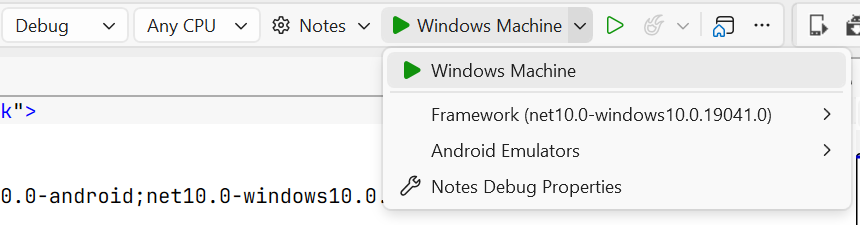
Fig. 15.4. Choosing the target platform to run
An Android emulator is created in Tools → Android → Android Device Manager with the New button: choose a device profile (for example, Pixel) and an x86_64 system image, and click Create (Fig. 15.5). Without hardware virtualization, the emulator runs very slowly. On Windows, Hyper-V with the Windows Hypervisor Platform (WHPX) is recommended: they are enabled in Turn Windows features on or off, and Intel VT-x or AMD-V (SVM) must be enabled in the BIOS. The systeminfo command shows whether the computer supports Hyper-V. If Hyper-V is unavailable, the AEHD driver (Android Emulator hypervisor driver) is used. On computers with ARM processors (Windows on Arm), the Android emulator does not work (https://learn.microsoft.com/dotnet/maui/android/emulator/hardware-acceleration).
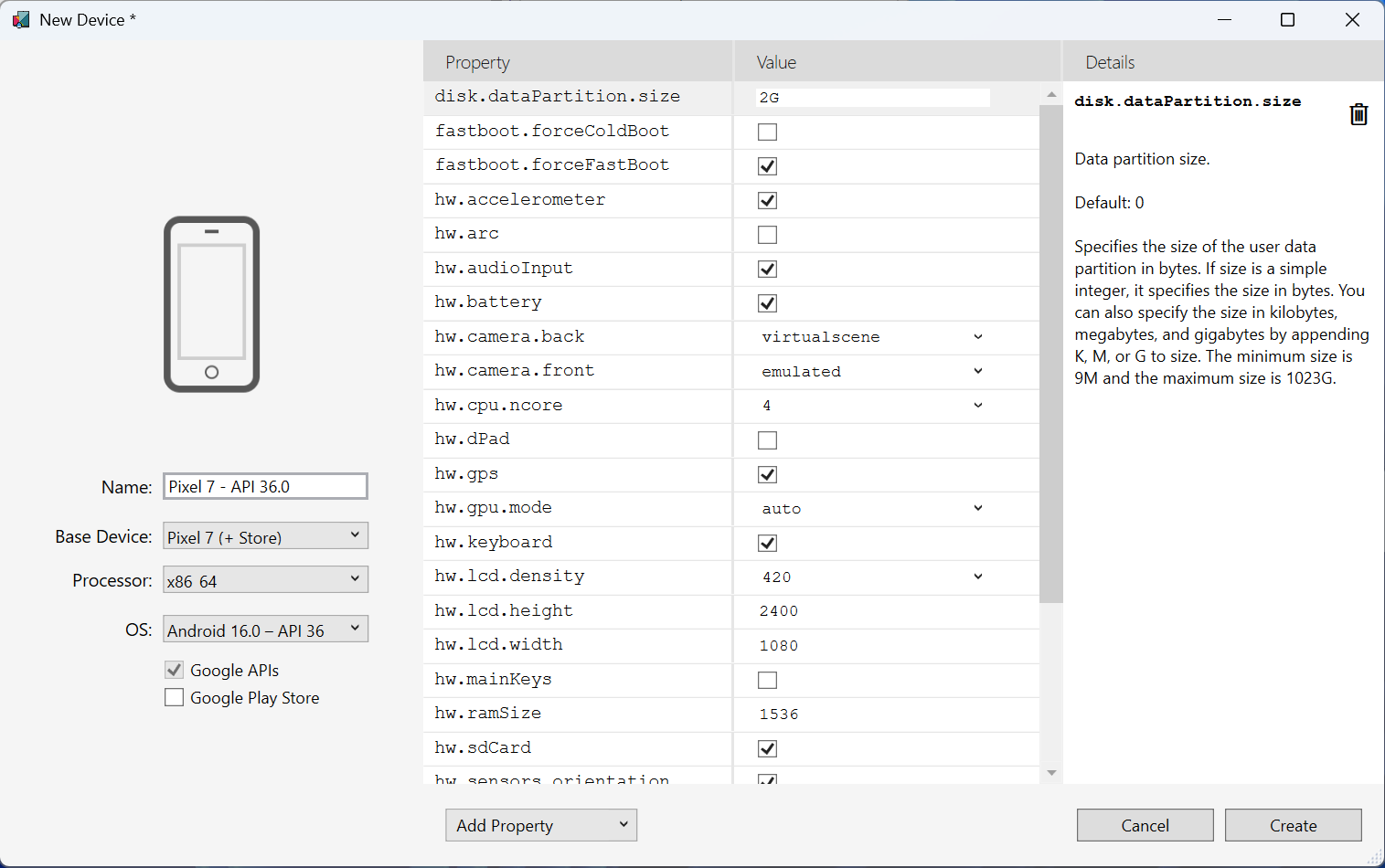
Fig. 15.5. Creating an emulator in Android Device Manager
Your own phone is often more convenient than an emulator (https://learn.microsoft.com/dotnet/maui/android/device/setup):
- In the phone's About phone settings, tap Build number seven times until the message You are now a developer! appears (on different phones the item may be in a different place).
- In Developer options, turn on USB debugging.
- Connect the phone with a USB cable and allow debugging from this computer (Always allow from this computer).
- Choose the phone in the Android Local Devices list and run the application (F5).
Android 11 and later also support debugging over Wi-Fi (Wireless debugging). In .NET 10 the Android version can also be run from the command line with dotnet run with the parameters -f net10.0-android and -p:AdbTarget=-d (a phone) or -p:AdbTarget=-e (an emulator). Applications for iOS and macOS can be built and debugged only from a Mac with Xcode installed.
Hot Reload
During debugging (F5, the Debug configuration), XAML Hot Reload applies markup changes to the running application immediately as you type, without a restart and with the page state preserved (Fig. 15.6). .NET Hot Reload transfers C# code changes after you click the Hot Reload button on the toolbar. Hot Reload does not apply added files and NuGet packages, or some C# changes (for example, new class fields) – after them the application is restarted (https://learn.microsoft.com/dotnet/maui/xaml/hot-reload).
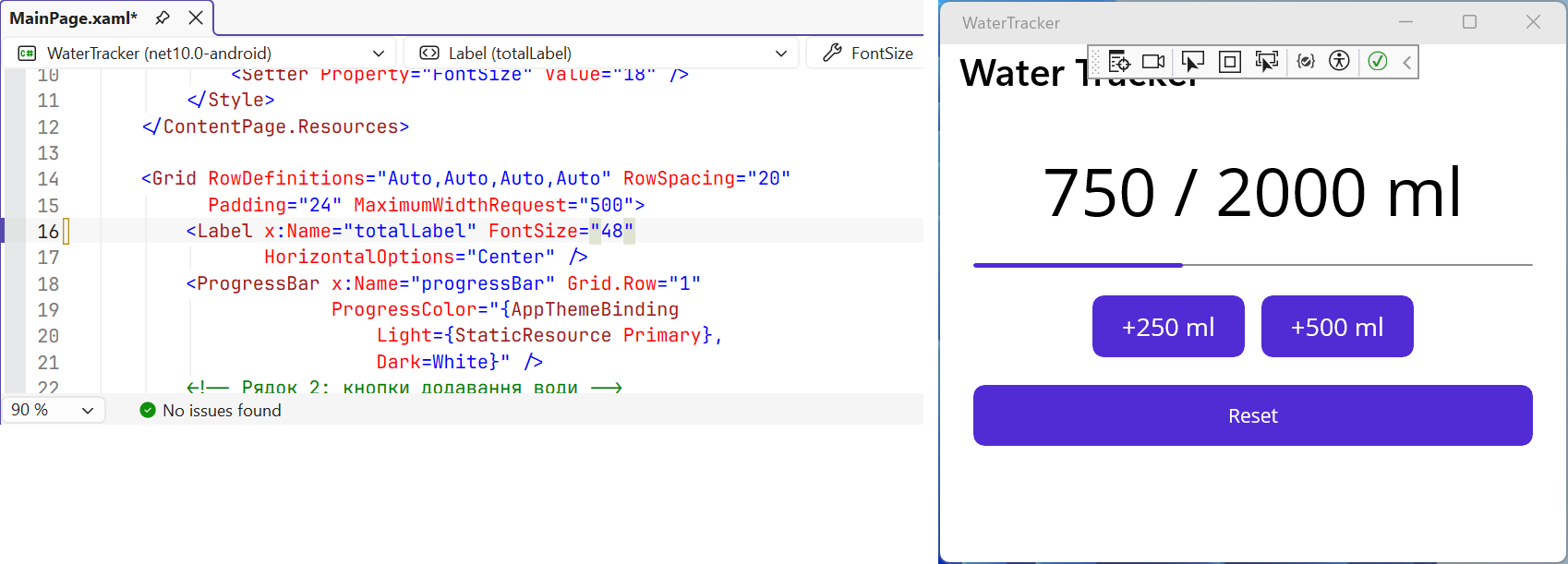
Fig. 15.6. XAML Hot Reload while the application is running