
English
Practice
Example 1. A timetable editor
Create a WPF application following the MVVM pattern for putting together a class timetable. The user chooses a day of the week and enters the start time in the HH:mm format, the subject name (at least 3 characters), and the room number (1–999). Invalid fields are marked with a border and a tooltip, the Add button is available only when the data is valid, an occupied time is not accepted, classes are shown in a table ordered by day and time, and the Remove button deletes the selected class.
The ViewModel inherits ObservableValidator from the CommunityToolkit.Mvvm library (the package was added with dotnet add package CommunityToolkit.Mvvm): validation attributes from the System.ComponentModel.DataAnnotations namespace together with [NotifyDataErrorInfo] validate a property after every change, and INotifyDataErrorInfo is implemented in the base class.
cs
using System.Collections.ObjectModel;
using System.ComponentModel.DataAnnotations;
using System.Globalization;
using CommunityToolkit.Mvvm.ComponentModel;
using CommunityToolkit.Mvvm.Input;

namespace Schedule;

public record Lesson(DayOfWeek Day, TimeOnly Start,
    string Subject, int Room);

public partial class ScheduleViewModel : ObservableValidator
{
    public DayOfWeek[] Days { get; } =
    [
        DayOfWeek.Monday, DayOfWeek.Tuesday, DayOfWeek.Wednesday,
        DayOfWeek.Thursday, DayOfWeek.Friday
    ];

    public ObservableCollection<Lesson> Lessons { get; } = [];

    [ObservableProperty]
    public partial DayOfWeek Day { get; set; } = DayOfWeek.Monday;

    [ObservableProperty]
    [NotifyDataErrorInfo]
    [NotifyCanExecuteChangedFor(nameof(AddCommand))]
    [RegularExpression(@"^([01]\d|2[0-3]):[0-5]\d$",
        ErrorMessage = "Use the HH:mm format, e.g. 08:30")]
    public partial string Start { get; set; } = "08:30";

    [ObservableProperty]
    [NotifyDataErrorInfo]
    [NotifyCanExecuteChangedFor(nameof(AddCommand))]
    [Required(ErrorMessage = "Enter a subject")]
    [MinLength(3, ErrorMessage = "At least 3 characters")]
    public partial string Subject { get; set; } = "";

    [ObservableProperty]
    [NotifyDataErrorInfo]
    [NotifyCanExecuteChangedFor(nameof(AddCommand))]
    [Range(1, 999, ErrorMessage = "Room must be from 1 to 999")]
    public partial int Room { get; set; } = 101;

    [ObservableProperty]
    [NotifyCanExecuteChangedFor(nameof(RemoveCommand))]
    public partial Lesson? SelectedLesson { get; set; }

    [ObservableProperty]
    public partial string Message { get; set; } = "";

    [RelayCommand(CanExecute = nameof(CanAdd))]
    private void Add()
    {
        ValidateAllProperties();   // validate all properties
        if (HasErrors)
        {
            return;
        }
        var start = TimeOnly.ParseExact(Start, "HH:mm",
            CultureInfo.InvariantCulture);
        if (Lessons.Any(l => l.Day == Day && l.Start == start))
        {
            Message = $"{Day} {Start} is already taken";
            return;
        }
        var lesson = new Lesson(Day, start, Subject.Trim(), Room);
        // Insert so that the timetable stays ordered.
        int index = Lessons.TakeWhile(l => l.Day < Day
            || l.Day == Day && l.Start < start).Count();
        Lessons.Insert(index, lesson);
        Message = $"Lessons: {Lessons.Count}";
        Subject = "";
        ClearErrors(nameof(Subject));   // an empty field without a border
    }

    private bool CanAdd() =>
        !HasErrors && !string.IsNullOrWhiteSpace(Subject);

    [RelayCommand(CanExecute = nameof(CanRemove))]
    private void Remove()
    {
        Lessons.Remove(SelectedLesson!);
        Message = $"Lessons: {Lessons.Count}";
    }

    private bool CanRemove() => SelectedLesson is not null;
}
The MainWindow.xaml window (Title="Schedule Editor") creates the ViewModel in <Window.DataContext>, and its resources contain an implicit TextBox style with a tooltip for the first error, as in the lecture. At the top of a DockPanel there is a horizontal panel with a ComboBox (ItemsSource="{Binding Days}", SelectedItem="{Binding Day}"), three fields bound to Start, Subject, and Room with UpdateSourceTrigger=PropertyChanged, and an Add button (Command="{Binding AddCommand}", IsDefault="True"); at the bottom, a {Binding Message} label and a Remove button (RemoveCommand); and the rest is taken by a table:
xml
<DataGrid ItemsSource="{Binding Lessons}" IsReadOnly="True"
          AutoGenerateColumns="False"
          SelectedItem="{Binding SelectedLesson}">
    <DataGrid.Columns>
        <DataGridTextColumn Header="Day"
            Binding="{Binding Day}"/>
        <DataGridTextColumn Header="Start"
            Binding="{Binding Start, StringFormat=HH:mm}"/>
        <DataGridTextColumn Header="Subject" Width="*"
            Binding="{Binding Subject}"/>
        <DataGridTextColumn Header="Room"
            Binding="{Binding Room}"/>
    </DataGrid.Columns>
</DataGrid>
The CanAdd method depends on HasErrors and the subject name, so each form property has [NotifyCanExecuteChangedFor(nameof(AddCommand))]. After a class is added, the subject name is cleared, and ClearErrors removes the [Required] error so that the empty field does not light up with a border. The DataGrid columns are declared explicitly: this is how the headers and the StringFormat=HH:mm time format for TimeOnly are set.
At first the Add button is unavailable. The subject OO gives the tooltip At least 3 characters, the time 8:3 gives Use the HH:mm format, e.g. 08:30, and room 1200 gives Room must be from 1 to 999. After adding Monday 10:10 OOP C# 101, Tuesday 08:30 Databases 101, and Monday 08:30 Algorithms 215, the table shows the rows in the order Monday 08:30, Monday 10:10, Tuesday 08:30, and the label shows Lessons: 3. An attempt to add another class on Monday 08:30 prints Monday 08:30 is already taken. The Remove button is enabled after a row is selected (Fig. 13.13).
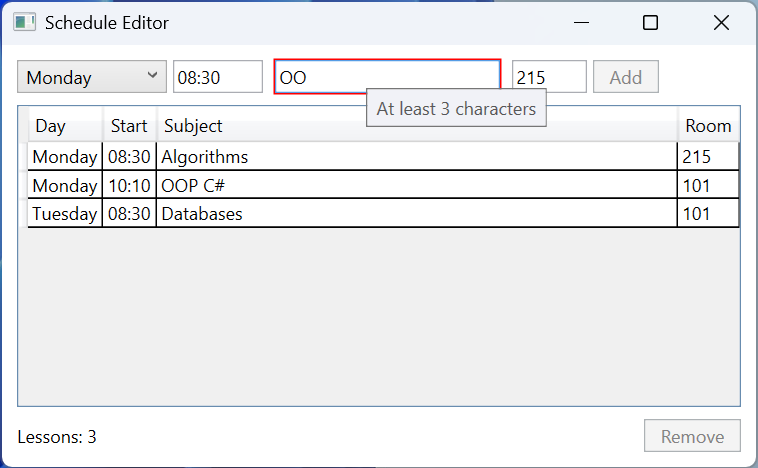
Fig. 13.13. The "Timetable editor" application
Example 2. Contact cards
Create a WPF application that shows contacts as cards arranged in rows with wrapping. The contacts are sorted by name. A personal contact card has a thin border, the name, and the phone, while a work contact card (with a company name) has a thick border, a gray background, the company name, the name in italics, and the phone. The look is chosen by a DataTemplateSelector, and sorting is done by a CollectionViewSource in XAML.
cs
using System.Windows;
using System.Windows.Controls;

namespace Cards;

public record Contact(string Name, string Phone, string? Company);

// Chooses the card template by the data, not by the type.
public class ContactTemplateSelector : DataTemplateSelector
{
    public DataTemplate? PersonTemplate { get; set; }

    public DataTemplate? CompanyTemplate { get; set; }

    public override DataTemplate? SelectTemplate(object item,
        DependencyObject container) =>
        item is Contact { Company: not null }
            ? CompanyTemplate : PersonTemplate;
}
After InitializeComponent(), the window constructor assigns to DataContext a List<Contact> of five contacts, for example new("Petro Bondar", "+380 67 111 2233", null) and new("Iryna Melnyk", "+380 50 444 5566", "Brussels Soft"). The window markup:
xml
<Window x:Class="Cards.MainWindow"
    xmlns="http://schemas.microsoft.com/winfx/2006/xaml/presentation"
    xmlns:x="http://schemas.microsoft.com/winfx/2006/xaml"
    xmlns:scm=
        "clr-namespace:System.ComponentModel;assembly=WindowsBase"
    xmlns:local="clr-namespace:Cards"
    Title="Contact Cards" Width="480" Height="300">
    <Window.Resources>
        <CollectionViewSource x:Key="SortedContacts"
                              Source="{Binding}">
            <CollectionViewSource.SortDescriptions>
                <scm:SortDescription PropertyName="Name"/>
            </CollectionViewSource.SortDescriptions>
        </CollectionViewSource>
        <Style x:Key="Card" TargetType="Border">
            <Setter Property="Width" Value="140"/>
            <Setter Property="Padding" Value="6"/>
            <Setter Property="BorderBrush" Value="Black"/>
            <Setter Property="CornerRadius" Value="4"/>
        </Style>
        <DataTemplate x:Key="PersonTemplate">
            <Border Style="{StaticResource Card}"
                    BorderThickness="1">
                <StackPanel>
                    <TextBlock Text="{Binding Name}"
                               FontWeight="Bold"/>
                    <TextBlock Text="{Binding Phone}"/>
                </StackPanel>
            </Border>
        </DataTemplate>
        <DataTemplate x:Key="CompanyTemplate">
            <Border Style="{StaticResource Card}"
                    BorderThickness="3" Background="#EEEEEE">
                <StackPanel>
                    <TextBlock Text="{Binding Company}"
                               FontWeight="Bold"/>
                    <TextBlock Text="{Binding Name}"
                               FontStyle="Italic"/>
                    <TextBlock Text="{Binding Phone}"/>
                </StackPanel>
            </Border>
        </DataTemplate>
        <local:ContactTemplateSelector x:Key="CardSelector"
            PersonTemplate="{StaticResource PersonTemplate}"
            CompanyTemplate="{StaticResource CompanyTemplate}"/>
    </Window.Resources>
    <ListBox ItemsSource="{Binding Source={StaticResource
             SortedContacts}}"
             ItemTemplateSelector="{StaticResource CardSelector}"
             ScrollViewer.HorizontalScrollBarVisibility="Disabled"
             Margin="10">
        <ListBox.ItemsPanel>
            <ItemsPanelTemplate>
                <WrapPanel/>
            </ItemsPanelTemplate>
        </ListBox.ItemsPanel>
    </ListBox>
</Window>
The resources are declared in order of use: StaticResource does not see resources declared further down in the same dictionary. SortDescription belongs to the WindowsBase assembly, so the scm namespace is declared for it; the long attribute value is wrapped after the = sign, which XML allows. Disabling horizontal scrolling makes the WrapPanel wrap the cards to a new row. The template is chosen when the item container is created: if a contact's company changes, the card's look does not change until the list is refreshed.
The window shows the cards in the order Andrii Koval, Denys Shevchuk, Iryna Melnyk (Brussels Soft), Oksana Lysenko (Rudna Trans), Petro Bondar: the two work cards have a thick border and a gray background (Fig. 13.14). After the window is made narrower, the cards wrap to new rows.
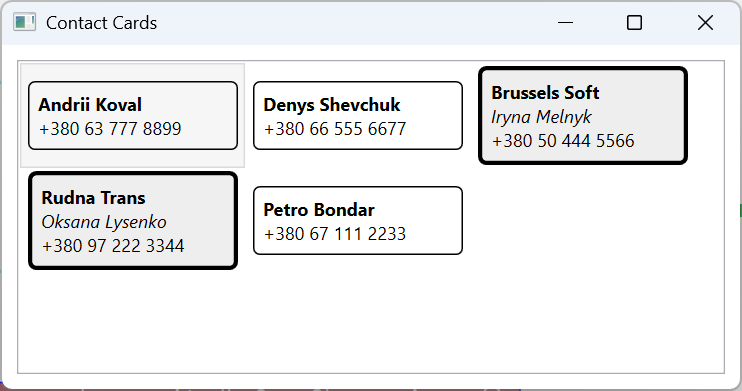
Fig. 13.14. The "Contact cards" application
Example 3. Searching for books in a web service
Create a WPF client for a book web service that searches for books by part of the title. The search runs asynchronously: during a request a progress indicator is visible, the Search button is unavailable, and the Cancel button cancels the request. The results are shown in a table, and the status bar reports the number of books found, a cancellation, or a connection error. The HttpClient and the ViewModel are created by the dependency container.
For testing, a simple ASP.NET Core Minimal API web service (Topic 10) was created with dotnet new web -o BookService. A 2 s delay simulates a slow network:
cs
var app = WebApplication.Create(args);

Book[] books =
[
    new(1, "Kobzar", "Taras Shevchenko", 1840),
    new(2, "Clean Code", "Robert C. Martin", 2008),
    new(3, "The Pragmatic Programmer", "D. Thomas, A. Hunt", 2019),
    new(4, "C# 12 in a Nutshell", "Joseph Albahari", 2023),
    new(5, "Code Complete", "Steve McConnell", 2004)
];

app.MapGet("/api/books", async (string? search,
    CancellationToken token) =>
{
    await Task.Delay(2000, token);   // simulate a slow service
    return books.Where(b => string.IsNullOrEmpty(search)
        || b.Title.Contains(search,
            StringComparison.OrdinalIgnoreCase));
});

app.Run("http://localhost:5080");

record Book(int Id, string Title, string Author, int Year);
The BookClient client (dotnet new wpf, the CommunityToolkit.Mvvm and Microsoft.Extensions.DependencyInjection packages). The ViewModel receives an HttpClient in its primary constructor, and the IncludeCancelCommand attribute creates the SearchCancelCommand command:
cs
using System.Collections.ObjectModel;
using System.Net.Http;
using System.Net.Http.Json;
using CommunityToolkit.Mvvm.ComponentModel;
using CommunityToolkit.Mvvm.Input;

namespace BookClient;

public record Book(int Id, string Title, string Author, int Year);

public partial class BookSearchViewModel(HttpClient http)
    : ObservableObject
{
    public ObservableCollection<Book> Books { get; } = [];

    [ObservableProperty]
    public partial string Query { get; set; } = "";

    [ObservableProperty]
    public partial string Status { get; set; } = "Ready";

    [RelayCommand(IncludeCancelCommand = true)]
    private async Task SearchAsync(CancellationToken token)
    {
        Status = "Loading...";
        try
        {
            string url = "api/books?search="
                + Uri.EscapeDataString(Query.Trim());
            List<Book> found = await http
                .GetFromJsonAsync<List<Book>>(url, token) ?? [];
            Books.Clear();
            foreach (Book book in found)
            {
                Books.Add(book);
            }
            Status = $"Found: {found.Count}";
        }
        catch (OperationCanceledException)
        {
            Status = "Cancelled";
        }
        catch (HttpRequestException ex)
        {
            Status = $"Error: {ex.Message}";
        }
    }
}

// The App.xaml.cs file (StartupUri was removed from App.xaml)
using System.Net.Http;
using System.Windows;
using Microsoft.Extensions.DependencyInjection;

namespace BookClient;

public partial class App : Application
{
    protected override void OnStartup(StartupEventArgs e)
    {
        base.OnStartup(e);
        var services = new ServiceCollection();

        services.AddSingleton(new HttpClient
        {
            BaseAddress = new Uri("http://localhost:5080/"),
            Timeout = TimeSpan.FromSeconds(10)
        });

        services.AddTransient<BookSearchViewModel>();
        services.AddTransient<MainWindow>();
        services.BuildServiceProvider()
            .GetRequiredService<MainWindow>().Show();
    }
}
The MainWindow(BookSearchViewModel viewModel) constructor assigns the ViewModel to the DataContext property. The window markup (Title="Book Search", with a BooleanToVisibilityConverter with the BoolToVisibility key in the resources):
xml
<DockPanel Margin="10">
    <DockPanel DockPanel.Dock="Top">
        <Button DockPanel.Dock="Right" Content="_Cancel"
                Command="{Binding SearchCancelCommand}"
                Padding="10,2" Margin="6,0,0,0"/>
        <Button DockPanel.Dock="Right" Content="_Search"
                Command="{Binding SearchCommand}"
                IsDefault="True" Padding="10,2"/>
        <TextBox Text="{Binding Query,
                 UpdateSourceTrigger=PropertyChanged}"
                 Margin="0,0,6,0"/>
    </DockPanel>
    <DockPanel DockPanel.Dock="Bottom" Margin="0,6,0,0">
        <ProgressBar DockPanel.Dock="Right" Width="120"
            IsIndeterminate="True"
            Visibility="{Binding SearchCommand.IsRunning,
            Converter={StaticResource BoolToVisibility}}"/>
        <TextBlock Text="{Binding Status}"/>
    </DockPanel>
    <ListView ItemsSource="{Binding Books}" Margin="0,6,0,0">
        <ListView.View>
            <GridView>
                <GridViewColumn Header="Title" Width="190"
                    DisplayMemberBinding="{Binding Title}"/>
                <GridViewColumn Header="Author" Width="130"
                    DisplayMemberBinding="{Binding Author}"/>
                <GridViewColumn Header="Year" Width="50"
                    DisplayMemberBinding="{Binding Year}"/>
            </GridView>
        </ListView.View>
    </ListView>
</DockPanel>
The asynchronous command itself disables the Search button while it runs (AllowConcurrentExecutions is false by default), and its IsRunning property controls the indicator. The cancel command is available only while the command runs and passes the signal to the CancellationToken that GetFromJsonAsync receives. Continuations after await run on the UI thread, so the ObservableCollection<T> can be changed without a Dispatcher.
First the service is started (dotnet run in the BookService folder), then the client. While searching for code, the status bar shows Loading..., Search is unavailable, and Cancel and the indicator are visible; after 2 s the table contains Clean Code and Code Complete, and the status is Found: 2 (Fig. 13.15). Clicking Cancel during a new request gives Cancelled, and the previous results remain. If the service is not running, the status bar shows the HttpRequestException message: Error: No connection could be made because the target machine actively refused it. (localhost:5080).
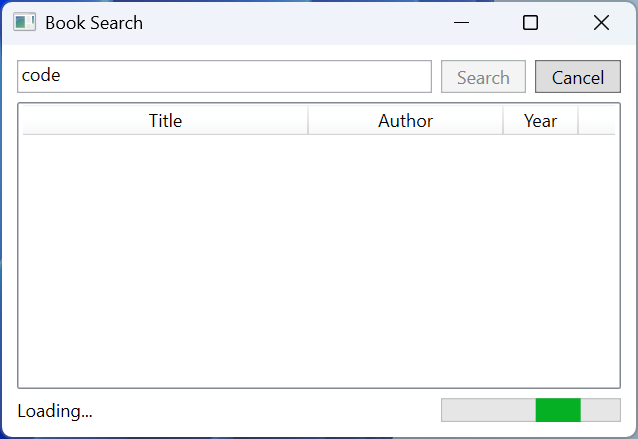
Fig. 13.15. The "Book search" application while a request is running