
English
History and teamwork
Tags, history search, and hooks
Tags
A tag is a permanent label for a commit, usually a version number. Unlike a branch, a tag does not move. An annotated tag (the -a option) stores the author, date, and description and is recommended for releases (https://git-scm.com/docs/git-tag):
PS> git tag -a v1.0 -m "Version 1.0: metres, miles, feet"
PS> git tag
v1.0
The git show v1.0 command displays the tag's author and description and the commit it points to.
A tag can be used instead of a hash: git diff --stat v1.0 v1.1 compares two versions, git show v1.0:Program.cs shows a file as of version 1.0, and git switch --detach v1.0 temporarily switches the working directory to that version (return with git switch main). Version numbers usually follow semantic versioning MAJOR.MINOR.PATCH (https://semver.org): v1.0.1 means bug fixes, v1.1.0 new features, and v2.0.0 incompatible changes. Along with tags, projects often keep a CHANGELOG.md file listing the changes in each version.
Searching history
Git answers the question "when and by whom was this code changed":
git log -S "text"—commits that added or removed the specified text;git log --grep "word"—commits whose message contains the word;git log -- Program.cs—commits that changed the file;git blame <file>—the last commit, author, and date for each line of the file (https://git-scm.com/docs/git-blame).
PS> git log --oneline -S "3280.84"
dfb633b Add feet

PS> git log --oneline --grep "feet"
9ae4f9a Merge branch 'feature/feet'
dfb633b Add feet
Finding the commit that introduced a bug: git bisect
After several commits, the converter started calculating miles incorrectly: 1.609344 km should equal exactly one mile, but the program outputs 1.505. Version v1.1 did not have the bug. The git bisect command finds the commit that introduced the bug using binary search: Git repeatedly switches the working directory to the commit in the middle of the range, and the developer tests the program and reports the result with git bisect good or git bisect bad (https://git-scm.com/docs/git-bisect):
PS> git bisect start
PS> git bisect bad
PS> git bisect good v1.1
Bisecting: 1 revision left to test after this (roughly 1 step)
[6c393a56b034d1918afdaac2bbf27fd860631a2e] Align output lines
After dotnet run, this commit outputs 1.505 miles, so we answer git bisect bad; the next one (Add centimetres) outputs 1.000 miles, so we answer git bisect good:
PS> git bisect good
6c393a56b034d1918afdaac2bbf27fd860631a2e is the first 'bad' commit
...
PS> git bisect reset
(The start, bad, and reset commands also print short status messages.) For 100 commits, about 7 checks are enough. The git bisect reset command returns you to the branch. Next, git show 6c393a5 shows that the "alignment" commit accidentally changed the constant 1.609344 to 1.069344; git blame Program.cs for that line also points to commit 6c393a56. The bug is fixed with git revert --no-edit 6c393a5. If the check can be performed by a command that returns exit code 0 for a correct version, the search can be automated: git bisect run <command>.
Git hooks
A hook is a script that Git runs automatically when a certain event occurs (https://git-scm.com/docs/githooks). Examples of hooks that run on the developer's computer: pre-commit (before a commit is created), commit-msg (message validation), and pre-push (before pushing). If a hook exits with a nonzero code, Git cancels the action. Server-side hooks (pre-receive, update) can reject pushed changes.
By default, hooks live in the .git/hooks folder (it contains examples with the .sample extension), but this folder is not included in commits. To give hooks to all team members, they are stored in a repository folder, for example .githooks, which is specified with the core.hooksPath setting. Git for Windows runs hooks with the built-in sh shell, so the script is written in the shell language, and the first line #!/bin/sh is required. The .githooks/pre-commit file (without an extension) prevents committing code that does not build:
bash
#!/bin/sh
# Before committing, check that the project builds.
echo "pre-commit: dotnet build"
if ! dotnet build -v q -tl:off --nologo \
        -p:GenerateFullPaths=false -clp:ShowProjectFile=false; then
    echo "Build failed, commit canceled." >&2
    exit 1
fi
The -v q and -tl:off options make the build output short, and the last two parameters shorten paths in error messages. Let's test the hook on code with a missing semicolon:
PS> git config core.hooksPath .githooks
PS> git commit -am "Shorten output"
pre-commit: dotnet build
Program.cs(20,48): error CS1002: ; expected

Build FAILED.
...
Build failed, commit canceled.
The commit was not created. After the error is fixed, the hook lets the commit through (Build succeeded.), and the git commit --no-verify option skips the check. The core.hooksPath setting is stored in .git/config, so each team member sets it once after cloning.
Remote repositories and teamwork
A remote repository is another copy of the repository with which you exchange commits. It is usually hosted on GitHub or another hosting service, but it can also be a folder on disk or on a local network. The following commands are used for the exchange (Fig. 1.7):
git clone <address>—create a local copy of a remote repository;git remote add origin <address>—register a remote repository under the nameorigin;git push—send your commits;git fetch—get new commits without changing your working branches;git pull—get new commits and merge them into the current branch (fetch+merge).
Figure 1.7. Interaction between local and remote repositories
A local "server": a bare repository
You need neither an account nor a network to learn how to work with a remote repository. A bare repository—a folder with only the history and no working directory—plays the role of the server. You can push commits to it just like to GitHub. Let's create one for the "To-do list" and push the main branch:
PS> git init --bare "D:\Courses\OOP C#\Code\Lec01\remote\TodoList.git"
Initialized empty Git repository in D:/Courses/OOP C#/Code/Lec01/remote/TodoList.git/

PS> git remote add origin "D:\Courses\OOP C#\Code\Lec01\remote\TodoList.git"
PS> git remote -v
origin  D:\Courses\OOP C#\Code\Lec01\remote\TodoList.git (fetch)
origin  D:\Courses\OOP C#\Code\Lec01\remote\TodoList.git (push)
PS> git push -u origin main
To D:\Courses\OOP C#\Code\Lec01\remote\TodoList.git
* [new branch] main -> main
branch 'main' set up to track 'origin/main'.The -u option links the local main branch to the remote origin/main (upstream), so from then on you can just type git push and git pull without parameters. origin/main is a remote-tracking branch: a local copy of the state of the main branch on the server as of the last fetch, pull, or push.
Two team members
The second team member, Andrii, is simulated by another clone in the D:\Courses\OOP C#\Code\Lec01\team folder. In the clone, set his name without --global so that the commits have a different author: git config user.name "Andrii Bondar".
PS> git clone "D:\Courses\OOP C#\Code\Lec01\remote\TodoList.git" TodoList
Cloning into 'TodoList'...
done.
Andrii adds a README.md file, commits it (Add README), and pushes the commit with git push. Meanwhile, Olena made the commit Show task count in her repository. The server rejects her push because it has a commit that Olena has not received yet:
PS> git push
To D:\Courses\OOP C#\Code\Lec01\remote\TodoList.git
 ! [rejected]        main -> main (fetch first)
error: failed to push some refs to 'D:\Courses\OOP C#\Code\Lec01\remote\TodoList.git'
hint: Updates were rejected because the remote contains work that you
hint: do not have locally. ...
First, let's fetch the other commits and look at the graph:
PS> git fetch
...
PS> git log --oneline --graph --all -4
* e41525f Show task count
| * 93dadd9 Add README
|/
* 6a861bd Sort tasks by name
* 0fec855 Add task from keyboard
The branches have diverged, so git pull performs a merge (the pull.rebase false setting), after which the push succeeds. Andrii then gets the result with git pull (as a fast-forward):
PS> git pull --no-edit
Merge made by the 'ort' strategy.
 README.md | 4 ++++
 1 file changed, 4 insertions(+)
 create mode 100644 README.md

PS> git push
To D:\Courses\OOP C#\Code\Lec01\remote\TodoList.git
   93dadd9..456ac5b  main -> main
Reviewing a branch before merging
In teams, changes are usually not pushed directly to main; they are prepared in a branch that another team member reviews (code review) and only then merges. Andrii creates a feature/summary branch, commits to it, and pushes it with git push -u origin feature/summary. Olena fetches the branch and reviews it without switching: main..origin/feature/summary in git log means "the branch commits that are not in main", and main...origin/feature/summary (three dots) in git diff means "the branch changes since the point where it diverged from main":
PS> git fetch
From D:\Courses\OOP C#\Code\Lec01\remote\TodoList
 * [new branch]      feature/summary -> origin/feature/summary

PS> git log --oneline main..origin/feature/summary
b15fe6e Print tasks in one line
PS> git diff main...origin/feature/summary
...
tasks.Sort();
+Console.WriteLine("Done: " + string.Join(", ", tasks));
...If the changes are accepted, the branch is merged, main is pushed, the branch is deleted on the server, and the release is tagged. Tags are not pushed automatically, so they are pushed separately:
powershell
git merge --no-edit origin/feature/summary
git push
git push origin --delete feature/summary
git tag -a v1.0 -m "Version 1.0"
git push origin v1.0
Team members clean up references to deleted branches with git fetch --prune. To protect main in a bare repository from being rewritten or deleted, enable the receive.denyNonFastForwards and receive.denyDeletes settings in it: the server will then reject git push --force and the deletion of main.
GitHub (for self-study)
The lab assignments in this topic use local repositories, so this section is optional. However, most open-source projects and many companies use GitHub (https://github.com): it hosts remote repositories and adds collaboration tools. Documentation: https://docs.github.com/en/get-started/using-git.
Publishing a repository and authentication
To publish a local repository, create a new repository on GitHub (New repository) without a README, .gitignore, or license, since they already exist locally, and run the commands GitHub shows on its page:
powershell
git remote add origin https://github.com/<user>/TodoList.git
git push -u origin main
If origin already points to a local folder, change the address with git remote set-url origin <address>. GitHub does not accept your account password for Git operations. For https:// addresses, use Git Credential Manager, which is included with Git for Windows: during the first push, a browser opens for sign-in, and the token is stored in Windows Credential Manager (https://docs.github.com/en/get-started/git-basics/caching-your-github-credentials-in-git). The alternative is an SSH key (ssh-keygen -t ed25519) and [email protected]:<user>/TodoList.git addresses; the public part of the key is added under Settings → SSH and GPG keys (https://docs.github.com/en/authentication/connecting-to-github-with-ssh/generating-a-new-ssh-key-and-adding-it-to-the-ssh-agent). Never share your private key or tokens with anyone or store them in a repository.
Pull requests and GitHub Flow
A pull request (PR) is a proposal to merge one branch into another, which team members discuss and review in the web interface: they comment on lines of code, approve, or request changes. It is the same branch review as git log main..feature and git diff main...feature, but with a discussion history (https://docs.github.com/en/pull-requests). The GitHub Flow workflow (https://docs.github.com/en/get-started/using-github/github-flow): create a branch from main; make commits and push the branch; open a pull request; address review comments with new commits; merge the pull request into main; delete the branch.
For projects you cannot write to, you first create a fork—your own copy of the repository on GitHub—and open a pull request from it. GitHub also creates releases based on tags and lets you configure branch protection, for example to forbid changes to main without an approved pull request.
Git in Visual Studio 2026
Visual Studio 2026 has built-in Git support: all the operations from the previous sections can be performed in IDE windows. Git commands are collected in the Git menu, and the current branch is shown in the status bar (https://learn.microsoft.com/visualstudio/version-control/). Visual Studio uses the same repositories and settings as the terminal, so you can combine both approaches.
Creating a repository
For an open solution without a repository, choose Git → Create Git Repository. In the Create a Git repository dialog, under Other, select Local only, check the path and the .gitignore template, and click Create and Push. For a local repository nothing is pushed: Visual Studio runs git init, creates .gitignore, and makes the first commit. If the repository was already created in the terminal, Visual Studio recognizes it automatically.
The Git Changes window
The Git Changes window (View → Git Changes) replaces the status, add, and commit commands (Fig. 1.8). The Changes list shows modified files; double-clicking opens a comparison with the previous version (git diff). The + button next to a file adds it to the index (the Staged Changes list), and the − button removes it. After you enter a message, Commit Staged creates a commit from the index, and Commit All creates one from all changes (git commit -a); the Amend check box replaces the last commit. The Fetch, Pull, Push, and Sync buttons exchange commits with the remote repository.
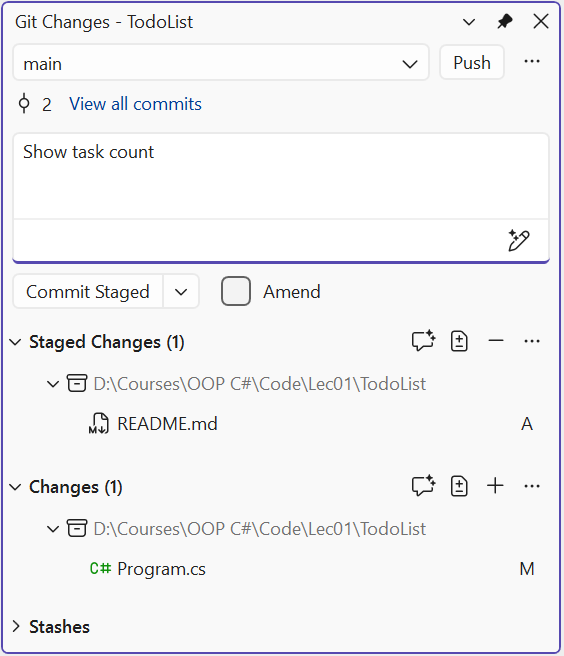
Figure 1.8. The Git Changes window
Branches and history
A new branch is created with Git → New Branch: in the Create a new branch dialog, enter the name, choose the branch it starts from in the Based on field, and the Checkout branch check box switches to the new branch immediately. It is convenient to switch between branches in the status bar or in the Git Changes window.
The Git Repository window (View → Git Repository, Ctrl+0, Ctrl+R) shows branches and tags (Branches / Tags) and the commit graph of the selected branch (Fig. 1.9). Double-clicking a commit opens its changes. The context menu of a branch other than the current one contains Merge 'feature' into 'main' (merge the selected feature branch into the current main) and Rebase 'feature' onto 'main' (rebase the current feature onto the selected main); the commit context menu contains Cherry-Pick, Revert, and Reset → Delete Changes (--hard); you can create a tag in the commit details.
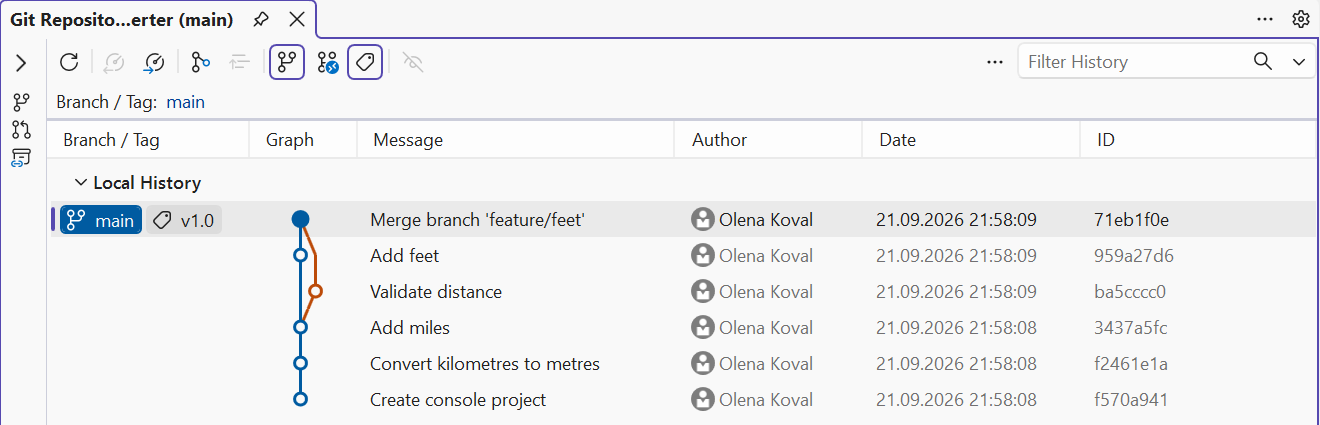
Figure 1.9. Commit history in the Git Repository window
Resolving conflicts in the merge editor
If a merge stops because of a conflict, the conflicting files appear in the Git Changes window in the Unmerged Changes list. Double-clicking a file (or the Open Merge Editor link in the open file) opens the Merge Editor (Fig. 1.10). It shows the Incoming (the branch being merged) and Current (the current branch) versions and a Result pane that you can edit manually. The check boxes next to fragments add the lines of the corresponding version to the result, and the Take Incoming (F10) and Take Current (F11) buttons accept all changes from one side. When the file's conflicts are resolved, click Accept Merge and complete the merge with a commit in the Git Changes window.
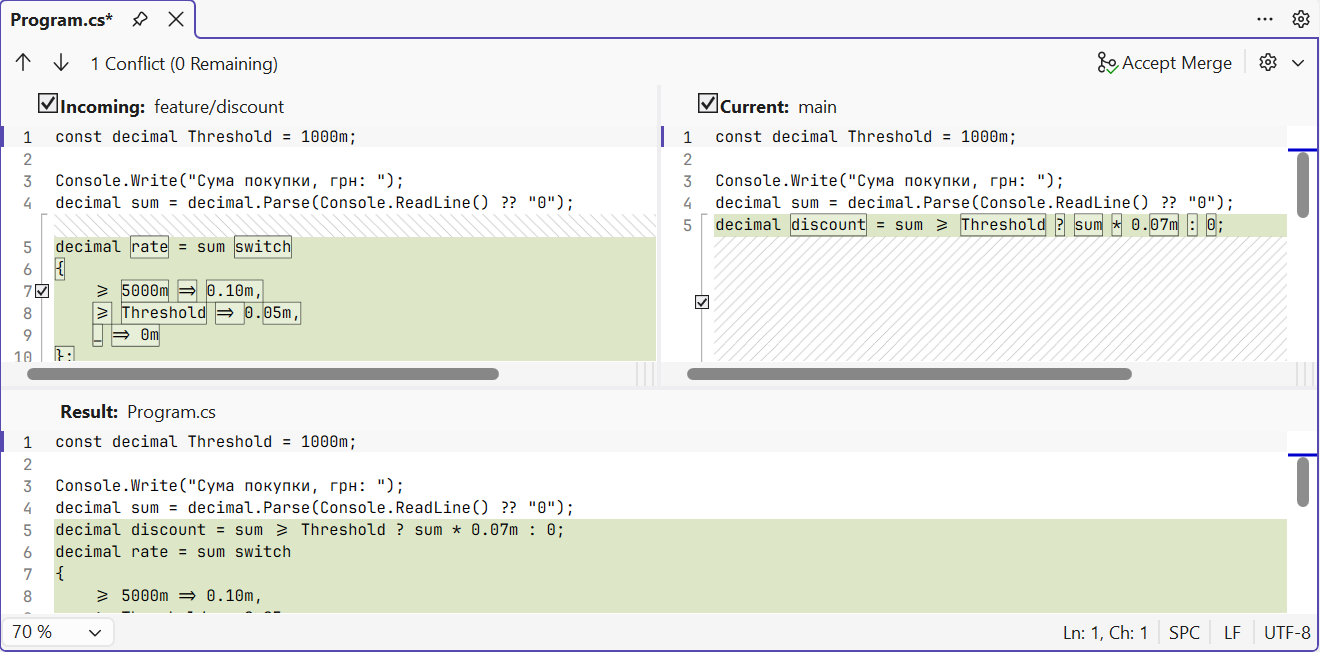
Figure 1.10. Resolving a conflict in the Visual Studio 2026 merge editor
Line author: Blame (Annotate)
The equivalent of git blame is the editor context menu command Git → Blame (Annotate): the author, date, and commit of the last change appear to the left of each line. The history of an individual file is shown by the Git → View History command in the file's context menu in Solution Explorer. You can check the author name and email in the IDE under Git → Settings.