
English
Device services, data, and publishing
Device services and permissions
Platform APIs
MAUI provides cross-platform classes for device capabilities (Table 15.4). Each class has a static Default or Current property with the implementation for the current platform and an interface for DI (https://learn.microsoft.com/dotnet/maui/platform-integration/).
Table 15.4. .NET MAUI device services
| Class | Purpose and main members |
|---|---|
Preferences | simple key-value settings (bool, numbers, string, DateTime): Set, Get(key, default), Remove |
SecureStorage | encrypted storage for tokens and passwords: SetAsync, GetAsync, Remove |
FileSystem | AppDataDirectory – application data, CacheDirectory – the cache, OpenAppPackageFileAsync – files from Resources/Raw |
Connectivity | NetworkAccess (Internet, Local, None), the ConnectivityChanged event |
Geolocation | GetLocationAsync, GetLastKnownLocationAsync, IsEnabled (.NET 10) |
MediaPicker | PickPhotosAsync (SelectionLimit), CapturePhotoAsync, IsCaptureSupported |
Share | the system "Share" window: ShareTextRequest, ShareFileRequest |
DeviceInfo, AppInfo | platform, device type, versions; AppInfo.ShowSettingsUI() |
PhoneDialer, Email, Launcher | a call, an email, opening an address in another application |
HapticFeedback, Vibration | haptic feedback and vibration; IsSupported (.NET 10) |
Accelerometer, Compass | sensors: IsSupported, Start(SensorSpeed), the ReadingChanged event, Stop |
Not every platform has every capability: a Windows computer usually has no compass or accelerometer, so before use you check IsSupported or catch FeatureNotSupportedException. The MediaPicker.PickPhotoAsync method is obsolete in .NET 10: use PickPhotosAsync instead, which returns a list (empty if the user canceled the selection).
The main thread. Interface elements can be changed only on the main thread. Connectivity events and events of sensors with the SensorSpeed.Game or Fastest speed may arrive from another thread, so updates are performed through MainThread.BeginInvokeOnMainThread(() => …). Events of sensors with the SensorSpeed.UI speed arrive on the main thread.
Permissions
Access to location, the camera, and contacts requires the user's permission. The Permissions class checks the permission status with the CheckStatusAsync<T> method and shows the system prompt with the RequestAsync<T> method, where T is the permission type, for example Permissions.LocationWhenInUse or Permissions.Camera (Fig. 15.11). The result has the PermissionStatus type: Granted, Denied, Disabled, Restricted, Limited, Unknown. A permission should be requested when the first page has already appeared and the user is performing an action that needs it; on iOS, after a denial the prompt is not shown again, and the user is directed to the settings (https://learn.microsoft.com/dotnet/maui/platform-integration/appmodel/permissions).
Fig. 15.11. Requesting permission to use location
The permissions an application requests must be declared on each platform. On Windows these APIs need no separate permissions (CheckStatusAsync returns Granted); on iOS the NSLocationWhenInUseUsageDescription key with an explanation for the user is added to Info.plist; and on Android <uses-permission android:name="android.permission.ACCESS_FINE_LOCATION" /> elements (and likewise ACCESS_COARSE_LOCATION) are added to the Platforms/Android/AndroidManifest.xml file. If a permission is not declared, RequestAsync throws a PermissionException. These lines can be checked in the visual manifest editor (double-click AndroidManifest.xml, the Required permissions section).
Example: where am I?
The page shows network state changes, determines the device coordinates and the distance to London, and shares a map link. The markup consists of a VerticalStackLayout with the labels networkLabel, coordinatesLabel, distanceLabel, the buttons Find my location (the OnLocateClicked event) and shareButton (Share, IsEnabled="False", the OnShareClicked event), and a busyIndicator (ActivityIndicator). The page code:
cs
using System.Globalization;

namespace WhereAmI;

public partial class MainPage : ContentPage
{
    private static readonly Location London = new(51.5074, -0.1278);
    private Location? current;

    public MainPage() => InitializeComponent();

    protected override void OnAppearing()
    {
        base.OnAppearing();
        Connectivity.Current.ConnectivityChanged += OnConnectivity;
    }

    protected override void OnDisappearing()
    {
        base.OnDisappearing();
        Connectivity.Current.ConnectivityChanged -= OnConnectivity;
    }

    // The event may arrive not on the main thread.
    private void OnConnectivity(object? sender,
        ConnectivityChangedEventArgs e) =>
        MainThread.BeginInvokeOnMainThread(() =>
            networkLabel.Text = $"Network: {e.NetworkAccess}");

    private async void OnLocateClicked(object? sender, EventArgs e)
    {
        PermissionStatus status = await Permissions
            .CheckStatusAsync<Permissions.LocationWhenInUse>();
        if (status != PermissionStatus.Granted)
        {
            status = await Permissions
                .RequestAsync<Permissions.LocationWhenInUse>();
        }
        if (status != PermissionStatus.Granted)
        {
            await DisplayAlertAsync("Location",
                "Allow location access in the app settings.", "OK");
            return;
        }
        busyIndicator.IsRunning = true;
        try
        {
            current = await Geolocation.Default.GetLocationAsync(
                new GeolocationRequest(GeolocationAccuracy.Medium,
                    TimeSpan.FromSeconds(10)));
            if (current is null)
            {
                coordinatesLabel.Text = "Location is unavailable";
                return;
            }
            coordinatesLabel.Text =
                $"{current.Latitude:F5}; {current.Longitude:F5}";
            double km = Location.CalculateDistance(
                current, London, DistanceUnits.Kilometers);
            distanceLabel.Text = $"Distance to London: {km:F1} km";
            shareButton.IsEnabled = true;
        }
        catch (FeatureNotEnabledException)
        {
            coordinatesLabel.Text = "Turn on location services";
        }
        finally
        {
            busyIndicator.IsRunning = false;
        }
    }

    private async void OnShareClicked(object? sender, EventArgs e)
    {
        // A decimal point in the coordinates under any regional settings.
        var inv = CultureInfo.InvariantCulture;
        string lat = current!.Latitude.ToString("F5", inv);
        string lon = current.Longitude.ToString("F5", inv);
        await Share.Default.RequestAsync(new ShareTextRequest
        {
            Title = "My location",
            Uri = $"https://www.openstreetmap.org/?mlat={lat}"
                + $"&mlon={lon}"
        });
    }
}
The first time Find my location is clicked on Android, the system permission prompt appears (Fig. 15.12). Coordinates in the emulator are set in Extended controls (the "…" button on the emulator panel → Location) (Fig. 15.13). For the sample point 50.8467, 4.3525 (Brussels, Grand-Place), the labels show 50.84670; 4.35250 and Distance to London: 320.8 km – this is the distance along the Earth's surface calculated by Location.CalculateDistance (an emulator with the English language formats numbers with a decimal point, one with Ukrainian uses a comma). Under regional settings with a decimal comma, a number with a comma in the link would break the map address, so for the URL the coordinates are formatted with CultureInfo.InvariantCulture (50.84670). If the permission is denied, the message advises turning it on in the settings (they are opened by AppInfo.Current.ShowSettingsUI()).
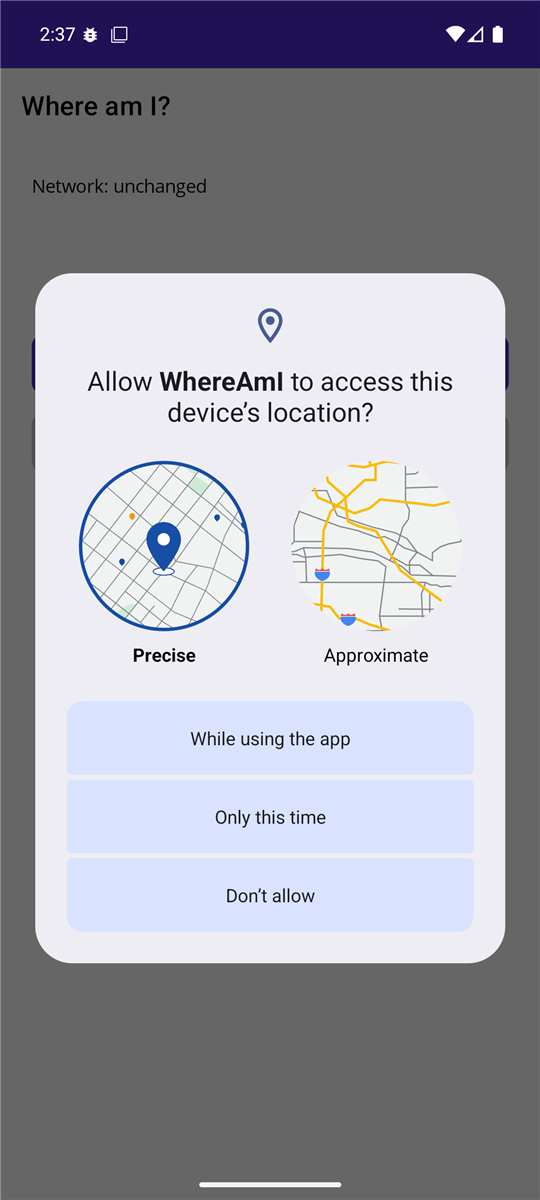
Fig. 15.12. The system location permission prompt
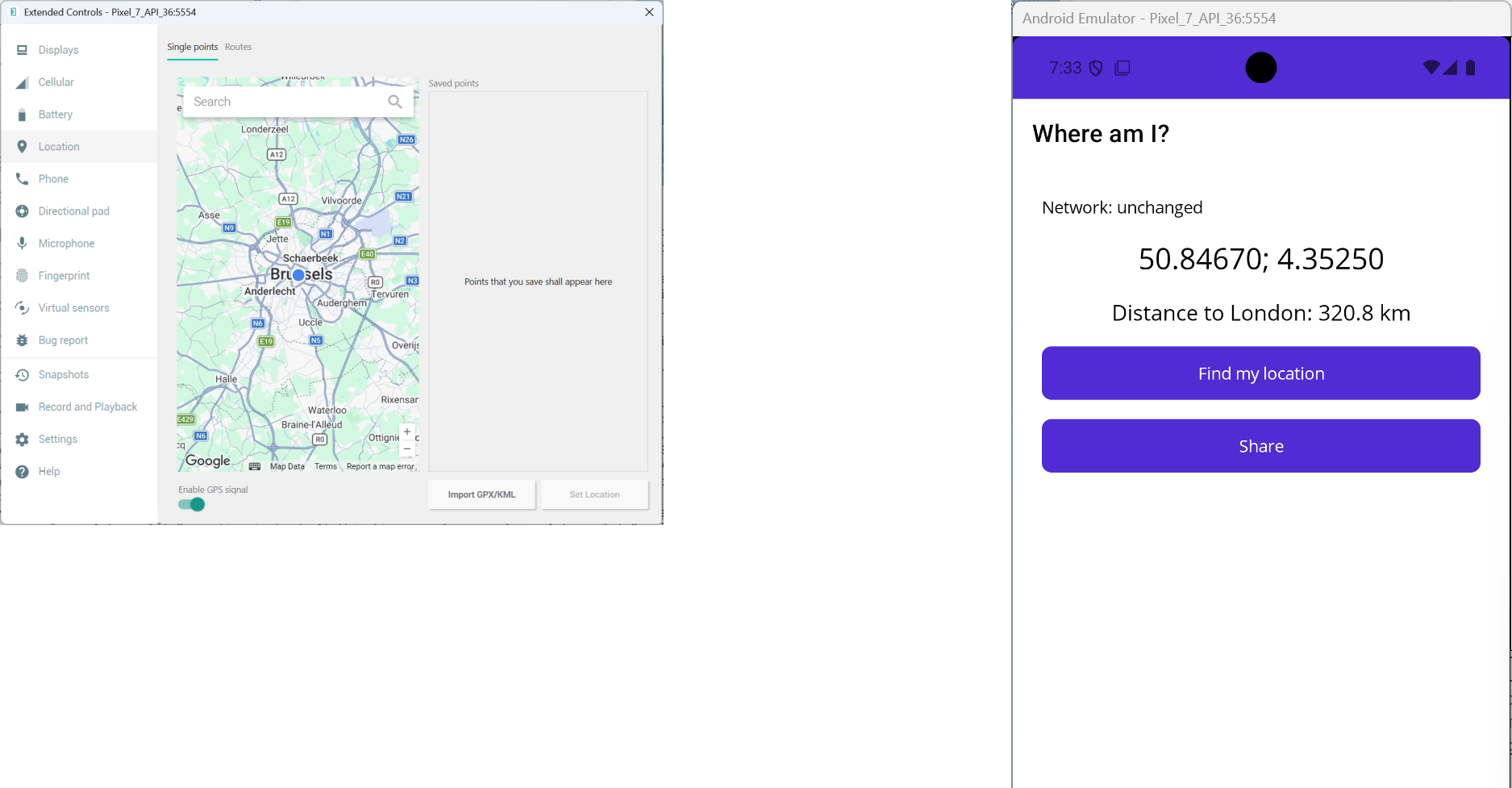
Fig. 15.13. Simulating coordinates in the emulator's extended controls
Local data and web services
An SQLite database
For small settings Preferences is enough, for documents files in AppDataDirectory, and for tables with search and sorting a local SQLite database. The MAUI documentation uses the sqlite-net-pcl package (owner praeclarum; other packages have similar names, so check the identifier) (https://learn.microsoft.com/dotnet/maui/data-cloud/database-sqlite). It provides a simple ORM: the [PrimaryKey, AutoIncrement] attributes, the asynchronous SQLiteAsyncConnection, the CreateTableAsync<T>, InsertAsync, UpdateAsync, DeleteAsync methods, and LINQ queries Table<T>().Where(…).ToListAsync(). The database file is placed in AppDataDirectory, and the connection is opened on first access (an example is in the lab assignment). The alternatives are the Microsoft.Data.Sqlite package (ADO.NET, Topic 7) and EF Core with the SQLite provider (Topic 8).
A client for the "Book catalog" REST service
The application gets a list of books from an ASP.NET Core web service running on the same computer (Topic 10) and refreshes it with a "pull down" gesture. The Android emulator works behind a virtual router, so localhost in it is the emulator itself, and the computer is reachable at 10.0.2.2. Android forbids unencrypted HTTP by default, so for the duration of development [Application(UsesCleartextTraffic = true)] is set inside #if DEBUG in Platforms/Android/MainApplication.cs (https://learn.microsoft.com/dotnet/maui/data-cloud/local-web-services).
BooksViewModel receives an HttpClient in its constructor. Its LoadCommand calls http.GetFromJsonAsync<List<Book>>("api/books"), fills the ObservableCollection<Book> Books, writes the number of books or the HttpRequestException text to Status, and resets the IsRefreshing property in the finally block. The service address depends on the platform and is set when the HttpClient is registered in MauiProgram: BaseAddress is http://10.0.2.2:5080/ if DeviceInfo.Platform == DevicePlatform.Android, and http://localhost:5080/ on other platforms. The page wraps the CollectionView in a RefreshView with the bindings Command="{Binding LoadCommand}" and IsRefreshing="{Binding IsRefreshing}".
The refresh gesture sets IsRefreshing = true and runs LoadCommand, and after loading the ViewModel resets the property, and the indicator disappears. If the service is not running, the Status label shows Server is unavailable: …, and the list stays as it was. The Page.IsBusy property is obsolete in .NET 10: use ActivityIndicator or RefreshView to indicate long-running operations.
CommunityToolkit.Maui
The CommunityToolkit.Maui package (version 15 for .NET 10, enabled with a .UseMauiCommunityToolkit() call) adds Toast and Snackbar pop-up messages, Popup windows, behaviors, and converters, and the separate CommunityToolkit.Maui.MediaElement package plays audio and video (https://learn.microsoft.com/dotnet/communitytoolkit/maui/). It is not required for the lab assignment.
Publishing the application
The dotnet publish command builds the application for one platform, so the -f parameter is required (https://learn.microsoft.com/dotnet/maui/deployment/):
powershell
# Windows: a folder with an .exe without an MSIX package
dotnet publish -f net10.0-windows10.0.19041.0 -c Release `
    -p:WindowsPackageType=None -p:WindowsAppSDKSelfContained=true
# Android: .aab (Google Play) and .apk files
dotnet publish -f net10.0-android -c Release
For Windows, the WindowsAppSDKSelfContained=true parameter adds the Windows App SDK libraries to the application folder, and an MSIX package for the Microsoft Store is signed with a certificate. For Android, a Release build creates an .aab package for Google Play and an .apk that can be installed on a phone directly. To publish to the store, the package is signed with your own key created with the keytool utility from the JDK (the AndroidKeyStore, AndroidSigningKeyStore, AndroidSigningKeyAlias parameters), and this key must be kept: without it you cannot release updates. Publishing for iOS requires a Mac and a paid Apple Developer Program account.