
English
Frame-by-frame animation and performance
Frame-by-frame animation
Storyboards describe motion that is known in advance well. In a game or a physical model the next position depends on velocity, collisions, and user actions, so it is calculated in every frame. For this WPF has the static CompositionTarget.Rendering event, which occurs before every frame is drawn, after layout (https://learn.microsoft.com/dotnet/desktop/wpf/graphics-multimedia/how-to-render-on-a-per-frame-interval-using-compositiontarget). Usage rules:
- the frame rate depends on the computer and the load (on the test computer, 60 frames per second), so the displacement is calculated from time: x = x + v · dt, where dt is the time since the previous frame;
- the event parameter is cast to
RenderingEventArgs; itsRenderingTimeproperty is the frame time. The event can occur several times for the same frame; thenRenderingTimedoes not change, and the repeated call is skipped; - the event is static: the subscription keeps the window in memory, so you unsubscribe when the window closes.
A DispatcherTimer (Topic 5) also calls its handler on the UI thread, but with its own interval that is not synchronized with the frames. It is used for infrequent events: updating a clock, a media file position, a game timer.
Example: a bouncing ball
The ball falls under gravity, bounces off the floor and the walls, losing part of its speed at every impact, and leaves a dotted trail (Fig. 14.7). Sliders change the gravitational acceleration and the elasticity. The model does not depend on WPF (the Ball.cs file), so it can be tested without a window:
cs
namespace BouncingBall;

// The ball model: center and velocity in pixels (DIP).
public class Ball
{
    public double X { get; set; } = 40;
    public double Y { get; set; } = 40;
    public double VX { get; set; } = 180;    // pixels per second
    public double VY { get; set; }
    public double Radius { get; } = 20;
    public double Gravity { get; set; } = 900;
    public double Elasticity { get; set; } = 0.8;

    // Motion over dt seconds in a width × height field.
    // Returns true if the ball hit the floor.
    public bool Step(double dt, double width, double height)
    {
        VY += Gravity * dt;
        X += VX * dt;
        Y += VY * dt;
        if (X < Radius || X > width - Radius)
        {
            X = Math.Clamp(X, Radius, width - Radius);
            VX = -VX;                        // bounce off a wall
        }
        if (Y > height - Radius && VY > 0)
        {
            Y = height - Radius;
            VY = -VY * Elasticity;           // energy loss
            return true;
        }
        return false;
    }
}
The MainWindow.xaml markup: a canvas with a dashed trail polyline and the ball, with sliders below it:
xml
<Window x:Class="BouncingBall.MainWindow"
    xmlns="http://schemas.microsoft.com/winfx/2006/xaml/presentation"
    xmlns:x="http://schemas.microsoft.com/winfx/2006/xaml"
    Title="Bouncing Ball" Width="560" Height="420">
    <DockPanel>
        <StackPanel DockPanel.Dock="Bottom" Orientation="Horizontal"
                    Margin="8">
            <TextBlock Text="Gravity" VerticalAlignment="Center"/>
            <Slider x:Name="gravitySlider" Width="110" Margin="6,0"
                    Minimum="100" Maximum="2000" Value="900"/>
            <TextBlock Text="Elasticity" VerticalAlignment="Center"/>
            <Slider x:Name="elasticitySlider" Width="110" Margin="6,0"
                    Minimum="0.3" Maximum="0.95" Value="0.8"/>
            <Button Content="Throw" Padding="10,2"
                    Click="Throw_Click"/>
        </StackPanel>
        <Canvas x:Name="field" Background="White" ClipToBounds="True">
            <Polyline x:Name="trail" Stroke="Gray"
                      StrokeDashArray="4 3"/>
            <Ellipse x:Name="ballShape" Width="40" Height="40"
                     Fill="DimGray" Stroke="Black"
                     StrokeThickness="2"/>
        </Canvas>
    </DockPanel>
</Window>
The OnRendering handler in the MainWindow.xaml.cs file calculates the time since the previous frame, advances the model, and transfers it to the screen. Limiting dt to 0.05 s is needed in case the window "froze" for a moment (dragging, minimizing): otherwise the ball would fly through the floor in a single step.
cs
using System.Windows;
using System.Windows.Controls;
using System.Windows.Media;

namespace BouncingBall;

public partial class MainWindow : Window
{
    private readonly Ball ball = new();
    private TimeSpan lastTime = TimeSpan.Zero;

    public MainWindow()
    {
        InitializeComponent();
        Loaded += (s, e) =>
            CompositionTarget.Rendering += OnRendering;
        Closed += (s, e) =>
            CompositionTarget.Rendering -= OnRendering;
    }

    private void OnRendering(object? sender, EventArgs e)
    {
        TimeSpan now = ((RenderingEventArgs)e).RenderingTime;
        if (now == lastTime) return;         // this frame was already handled
        double dt = lastTime == TimeSpan.Zero
            ? 0 : (now - lastTime).TotalSeconds;
        lastTime = now;
        if (field.ActualWidth < 2 * ball.Radius) return;

        ball.Gravity = gravitySlider.Value;
        ball.Elasticity = elasticitySlider.Value;
        dt = Math.Min(dt, 0.05);             // after a window delay
        ball.Step(dt, field.ActualWidth, field.ActualHeight);
        Draw();
    }

    private void Draw()
    {
        Canvas.SetLeft(ballShape, ball.X - ball.Radius);
        Canvas.SetTop(ballShape, ball.Y - ball.Radius);
        trail.Points.Add(new Point(ball.X, ball.Y));
        if (trail.Points.Count > 150) trail.Points.RemoveAt(0);
    }

    private void Throw_Click(object sender, RoutedEventArgs e)
    {
        (ball.X, ball.Y, ball.VX, ball.VY) = (40, 40, 180, 0);
        trail.Points.Clear();
    }
}
The model was tested separately with a step of 1/60 s in a 544 × 343 field (the canvas size in the window):
Impact 1: t = 0.80 s, x = 184, upward speed 576
Impact 2: t = 2.07 s, x = 412, upward speed 451
Impact 3: t = 3.07 s, x = 458, upward speed 359
Impact 4: t = 3.85 s, x = 317, upward speed 277
After each impact the speed is multiplied by 0.8, so the bounces become lower and more frequent; between the third and fourth impacts the ball bounced off the right wall.
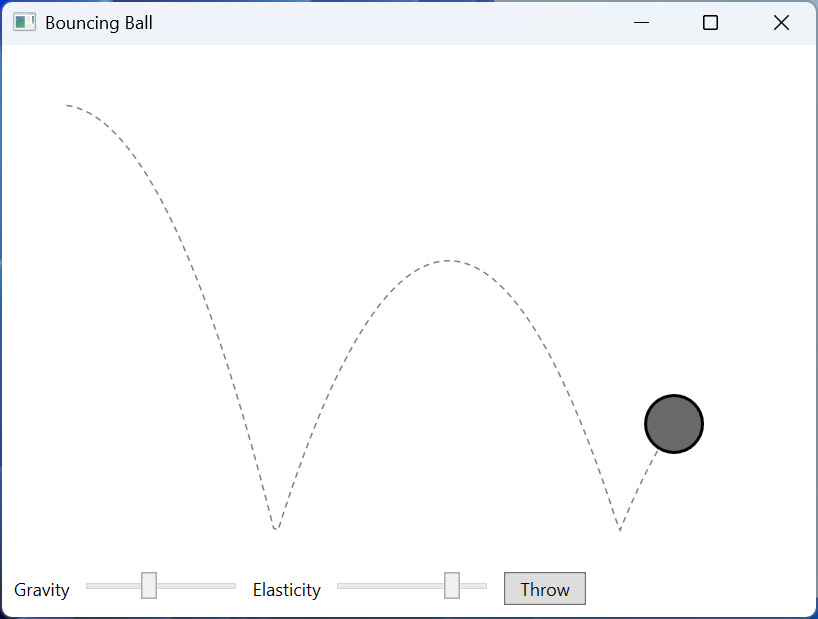
Fig. 14.7. The "Bouncing ball" application
Animation performance
Animations run on the UI thread, so their number and complexity affect the smoothness of the whole window. The main techniques:
- freezing
Freezableobjects. TheFreeze()method makes a brush, transform, geometry, or image immutable: WPF no longer tracks its changes and can use it on several threads (https://learn.microsoft.com/dotnet/desktop/wpf/advanced/freezable-objects-overview). CheckCanFreezebefore the call. The ready-madeBrushes.Graybrushes are already frozen; - animate transforms (
RenderTransform) andOpacityrather thanWidth,Margin, orLayoutTransform, which force the layout to be recalculated; CacheMode="BitmapCache"for a complex element that only moves, rotates, or changes opacity: WPF draws it once into a bitmap and then moves the ready bitmap (https://learn.microsoft.com/dotnet/api/system.windows.media.bitmapcache). When scaled, the bitmap gets blurry;Timeline.DesiredFrameRate– the desired frame rate of the root timeline (<Storyboard Timeline.DesiredFrameRate="30">) for slow background animations (https://learn.microsoft.com/dotnet/api/system.windows.media.animation.timeline.desiredframerate);- the
RenderOptionsattached properties:RenderOptions.BitmapScalingMode="NearestNeighbor"(fast image scaling without smoothing, crisp pixels) andRenderOptions.EdgeMode="Aliased"(shapes without edge anti-aliasing) (https://learn.microsoft.com/dotnet/api/system.windows.media.renderoptions);
cs
var brush = new SolidColorBrush(Colors.Gray);
if (brush.CanFreeze) brush.Freeze();
brush.Color = Colors.Black;       // InvalidOperationException
An attempt to change the frozen brush ended with the exception Cannot set a property on object '#FF808080' because it is in a read-only state, and an attempt to animate it with Cannot animate the 'Color' property on 'System.Windows.Media.SolidColorBrush' because the object is sealed or frozen. The Clone() method creates an unfrozen copy that can be changed.