
English
Commits and undoing changes
The basic workflow: first commits
Let's look at the basic workflow using a "To-do list" console program as an example. We'll create a project in the D:\Courses\OOP C#\Code\Lec01\TodoList folder and a repository with the git init command:
PS> dotnet new console
PS> git init
Initialized empty Git repository in D:/Courses/OOP C#/Code/Lec01/TodoList/.git/
The git init command creates the hidden .git folder; deleting this folder destroys the entire history. The git status command is your main tool: it shows the current branch and the state of files, and suggests the next commands. If you run it right away, the list of new files will include the obj/ folder with intermediate build files, which must not be added to the repository. So first we create a .gitignore file from the standard .NET template (its contents are covered in the next section):
PS> dotnet new gitignore
The template "dotnet gitignore file" was created successfully.
PS> git status
On branch main
No commits yet
Untracked files:
(use "git add <file>..." to include in what will be committed)
.gitignore
Program.cs
TodoList.csproj
nothing added to commit but untracked files present (use "git add"
to track)Adding to the index and committing
The git add command adds files to the index: git add Program.cs adds one file, and git add . adds all changes in the current folder and its subfolders. The git commit -m "message" command creates a commit:
PS> git add .
PS> git commit -m "Create console project"
[main (root-commit) 8db06e4] Create console project
 3 files changed, 493 insertions(+)
 create mode 100644 .gitignore
 create mode 100644 Program.cs
 create mode 100644 TodoList.csproj
The line [main (root-commit) 8db06e4] means that the commit was created on the main branch, it is the first (root) commit, and its short hash is 8db06e4. Fig. 1.4 shows the entire cycle in Windows Terminal.
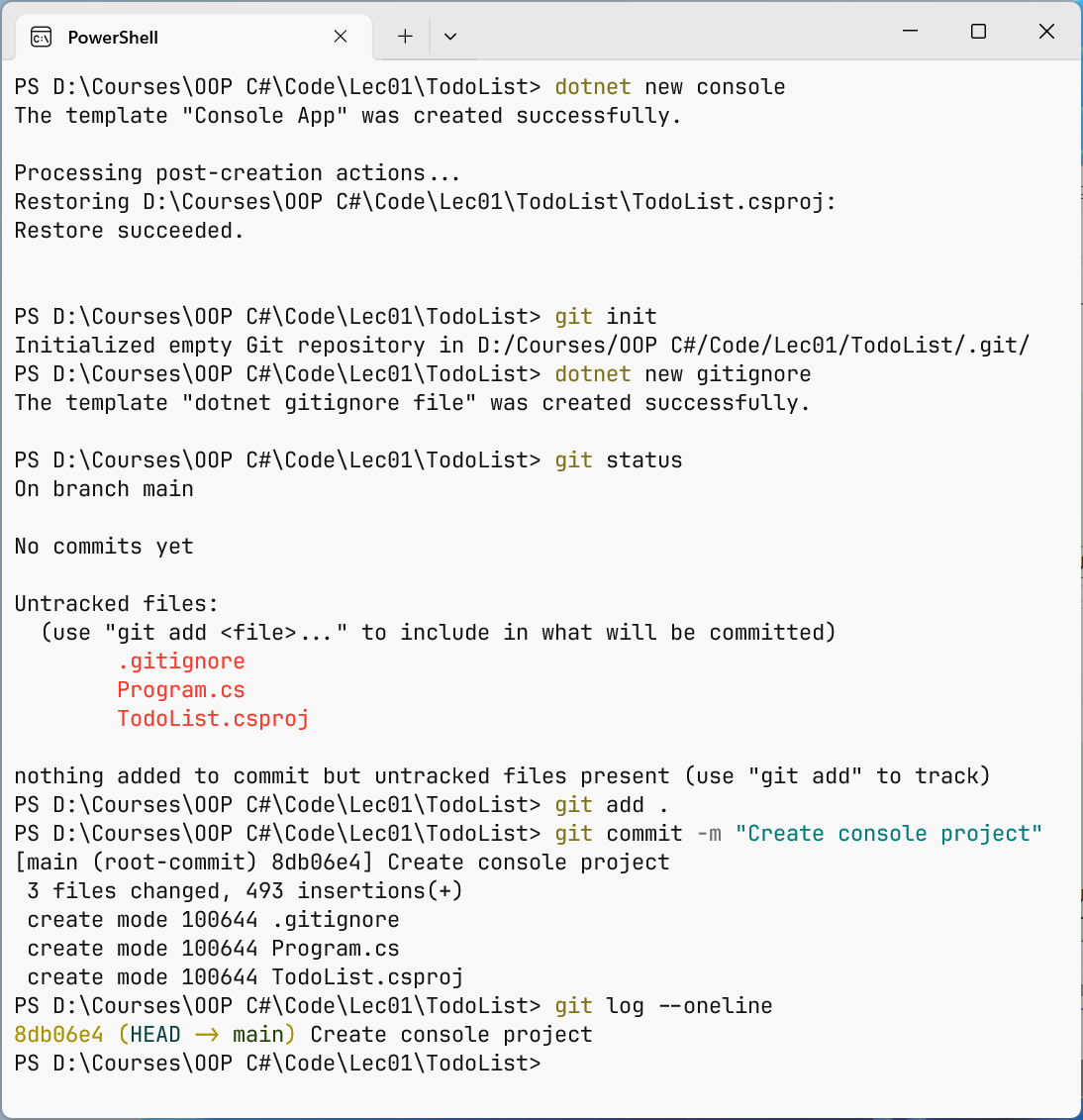
Figure 1.4. Creating a repository and the first commit in Windows Terminal
Viewing changes: git diff
Let's change Program.cs so that the program displays a to-do list. Now git status shows the file under Changes not staged for commit (modified: Program.cs), and git diff shows exactly what changed compared with the index. Lines starting with - were removed and lines with + were added; the @@ -1 +1,9 @@ header means "line 1 of the old version was replaced by lines 1–9 of the new one":
PS> git diff
diff --git a/Program.cs b/Program.cs
index 1bc52a6..02934f8 100644
--- a/Program.cs
+++ b/Program.cs
@@ -1 +1,9 @@
-Console.WriteLine("Hello, World!");
+Console.OutputEncoding = System.Text.Encoding.UTF8;
+
+List<string> tasks = ["Buy bread", "Submit the lab assignment"];
+
+Console.WriteLine("To-do list:");
+for (int i = 0; i < tasks.Count; i++)
+{
+    Console.WriteLine($"{i + 1}. {tasks[i]}");
+}
After git add, the git diff command outputs nothing because the working file matches the index; changes prepared for the commit are shown by git diff --staged.
PS> git add Program.cs
PS> git commit -m "Show task list"
[main af456b3] Show task list
 1 file changed, 9 insertions(+), 1 deletion(-)
Now let's add keyboard input for a new task: after the first line, insert Console.InputEncoding = System.Text.Encoding.UTF8;, and before displaying the list, insert the fragment below. The -a option of git commit automatically adds all tracked modified files to the index, so a separate git add is not needed (new files are not added this way).
cs
Console.Write("New task (Enter to skip): ");
string? text = Console.ReadLine();
if (!string.IsNullOrWhiteSpace(text))
{
    tasks.Add(text.Trim());
}
PS> git commit -am "Add task from keyboard"
[main 0fec855] Add task from keyboard
1 file changed, 8 insertions(+)PS> dotnet run
New task (Enter to skip): Read the Git chapter
To-do list:
1. Buy bread
2. Submit the lab assignment
3. Read the Git chapterViewing history: git log and git show
The git log command lists commits starting from the newest; the --oneline option shortens each commit to a single line, --graph draws the branch graph, --all shows all branches, and -3 shows only the last three commits (https://git-scm.com/docs/git-log). If the history is long, Git shows it page by page: press Space to scroll and Q to quit. Here and below, three dots denote omitted output lines.
The full git log format shows the hash, author, date, and message for each commit:
PS> git log --oneline
0fec855 Add task from keyboard
af456b3 Show task list
8db06e4 Create console project
The git show command shows a single commit (HEAD by default) together with its changes, for example git show af456b3; the --stat option replaces the changed lines with per-file statistics.
Commit messages
A commit should contain one logical change after which the project builds. The first line of the message is a short (up to 50–72 characters) summary in the imperative mood without a period: Add task from keyboard, not added stuff or changes. A team uses a single language for messages, most often English.
.gitignore and .gitattributes files
Ignoring files
A repository stores only source files: code, project files, and resources. It does not store build output (bin/, obj/), personal IDE settings (.vs/, *.user), secrets (passwords, API keys, connection strings), or files that can be obtained another way (NuGet packages are restored by dotnet restore).
Patterns for such files are written to the .gitignore file in the repository root. Each line is a pattern: bin/ is a folder at any level, *.log matches files with an extension, !important.log is an exception, and # starts a comment (https://git-scm.com/docs/gitignore). The dotnet new gitignore template contains almost 400 lines for .NET and Visual Studio, including [Bb]in/, [Oo]bj/, .vs/, and .env. The git check-ignore -v command explains which rule ignores a file:
PS> git check-ignore -v bin/Debug/net10.0/TodoList.dll
.gitignore:33:[Bb]in/   bin/Debug/net10.0/TodoList.dll

PS> git check-ignore -v obj/project.assets.json
.gitignore:34:[Oo]bj/   obj/project.assets.json
.gitignore affects only untracked files. If the bin folder has already been committed, adding it to .gitignore changes nothing: first you must remove it from the index with git rm -r --cached bin obj (the files on disk remain) and commit. This case is covered in the lab examples.
Important
A password or key that ends up in a commit stays in the history forever, even if you delete the file in the next commit. Such a secret is considered compromised: it must be changed immediately. Secrets are stored outside the repository, for example in environment variables.
Line endings and .gitattributes
On Windows, lines in text files end with the CR LF character pair, while on Linux and macOS they end with a single LF. Without an agreed format, every commit from "another" computer changes all lines of a file, and git diff becomes useless. Git solves this with normalization: in the repository, text files are stored with LF, and in the Windows working directory, with CRLF.
The core.autocrlf true setting enables normalization only on your computer. It is more reliable to write the rules into the repository itself, in the .gitattributes file, so they apply to everyone (https://git-scm.com/docs/gitattributes). It is created by the dotnet new gitattributes template; the main rules are: * text=auto—Git detects text files itself and normalizes line endings; *.cs text diff=csharp—C# files are text, and git diff shows the method name in the hunk header; *.sln text eol=crlf—solution files always use CRLF; *.png binary—a binary file without normalization. The warning LF will be replaced by CRLF the next time Git touches it is not an error: Git is just telling you that it will change the line endings in the working file.
Undoing changes
Git lets you undo almost any action. The main rule: the approach depends on whether the commit has been published, that is, whether other team members have seen it (Table 1.1).
Table 1.1. Commands for undoing changes
| Command | What it does |
|---|---|
git restore <file> | restores the working file to its state in the index; unsaved changes are lost |
git restore --staged <file> | removes the file from the index; the changes on disk remain |
git commit --amend | replaces the last commit with a new one (fix the message, add a forgotten file) |
git revert <commit> | creates a new commit that undoes the changes of the specified one; history is not rewritten |
git reset --soft <commit> | moves the branch to the commit; changes from the undone commits remain in the index |
git reset --mixed <commit> | the same, but the changes remain only in the working directory (the default mode) |
git reset --hard <commit> | moves the branch and deletes all uncommitted changes |
git stash | temporarily hides uncommitted changes so you can bring them back later |
Changes in the working directory and the index
The --short option shows the status briefly: M in the second column means the file is modified, in the first column it means changes in the index, and ?? marks an untracked file. An accidentally broken Program.cs is restored to its last saved state with git restore Program.cs, and an unwanted file is removed from the index with git restore --staged notes.txt (the file itself stays on disk):
PS> git status --short
 M Program.cs
Fixing the last commit
A commit with a typo in the message or a missing file is fixed with the --amend option: Git creates a new commit in place of the last one (note that the hash has changed). Before --amend, you can run git add for forgotten files.
PS> git commit -am "Sortt tasks"
[main 6c52215] Sortt tasks
 1 file changed, 1 insertion(+)

PS> git commit --amend -m "Sort tasks by name"
[main 6a861bd] Sort tasks by name
 Date: Thu Sep 17 10:26:38 2026 +0300
 1 file changed, 1 insertion(+)
Reverting a published commit: git revert
The git revert command does not delete a commit; it adds a new one that makes the opposite changes. History only grows, so this approach is safe for commits that other team members already have. The --no-edit option accepts the default message without opening an editor:
PS> git revert --no-edit HEAD
[main 3452baa] Revert "Sort tasks by name"
 Date: Thu Sep 17 10:26:38 2026 +0300
 1 file changed, 1 deletion(-)
Moving a branch: git reset
The git reset command moves the current branch pointer to the specified commit, and the subsequent commits disappear from the branch history. The --soft, --mixed, and --hard modes determine what happens to the changes (Table 1.1). Below, --hard removes the revert commit, and --soft undoes the sorting commit but keeps its changes in the index (M in the first column):
PS> git reset --hard HEAD~1
HEAD is now at 6a861bd Sort tasks by name

PS> git reset --soft HEAD~1
PS> git status --short
M  Program.cs
A commit is not destroyed immediately after reset: Git records every movement of HEAD in the reference log (reflog) for about 90 days. You can use it to recover a "lost" commit:
PS> git reflog -4
0fec855 HEAD@{0}: reset: moving to HEAD~1
6a861bd HEAD@{1}: reset: moving to HEAD~1
3452baa HEAD@{2}: revert: Revert "Sort tasks by name"
6a861bd HEAD@{3}: commit (amend): Sort tasks by name

PS> git reset --hard "HEAD@{1}"
HEAD is now at 6a861bd Sort tasks by name
In PowerShell, curly braces have a special meaning, so HEAD@{1} is enclosed in quotes.
Rule
git reset, git commit --amend, and git rebase rewrite history: the old commits are replaced by new ones with different hashes. Use them only for local commits that have not yet been pushed to a shared repository. For published commits, use git revert.
Temporarily saving work: git stash
Sometimes your work is unfinished, but you urgently need to switch to another branch. Uncommitted changes can be hidden in the stash and brought back later (https://git-scm.com/docs/git-stash):
PS> git stash push -m "Show task count"
Saved working directory and index state On main: Show task count

PS> git stash list
stash@{0}: On main: Show task count
After git stash push, the working directory is clean. The git stash pop command restores the changes and removes the entry from the stash, git stash apply restores them but keeps the entry, and git stash drop removes the entry without restoring it. New files are stashed only with the -u (--include-untracked) option.