
English
Binding and value conversion
Data binding
Target, source, and data context
In Topic 12, control values were read and changed in event handlers: nameBox.Text = person.Name, and after editing, the other way around. Such code grows quickly and gets duplicated. Data binding automatically synchronizes two properties: the target – a dependency property of a control (TextBox.Text, ListBox.ItemsSource) – and the source – a property of an ordinary C# object (Fig. 13.1) (https://learn.microsoft.com/dotnet/desktop/wpf/data/).
Fig. 13.1. The parts of a data binding
A binding is described by a Binding object, which in XAML is created by the {Binding} markup extension. Its main properties:
Path– the path to the source property:{Binding FirstName}(the first positional argument is thePath),{Binding SelectedProduct.Price},{Binding Items.Count};ElementName– the source is another element byx:Name:{Binding Value, ElementName=sizeSlider};RelativeSource– the source relative to the target: the element itself (Self) or an ancestor of a given type ({RelativeSource AncestorType=ListBox});Source– an explicit object, for example a resource:{Binding Source={StaticResource SortedContacts}}.
If none of the last three is set, the source is the data context – the value of the DataContext property. It is inherited down the element tree: it is enough to assign an object to the window's DataContext, and all nested elements bind to its properties. Binding works only with public properties, not with fields.
Modes and update timing
The Mode property determines the direction in which the value is passed (Fig. 13.2): OneWay (the default for TextBlock.Text, ItemsSource), TwoWay (the default for properties the user edits: TextBox.Text, CheckBox.IsChecked, Slider.Value, SelectedItem), OneTime (once, when the binding is created), and OneWayToSource (only from the target to the source).
The default mode is set by the property metadata, so you write only a different one explicitly: {Binding Total, Mode=OneWay} (https://learn.microsoft.com/dotnet/desktop/wpf/data/how-to-specify-the-direction-of-the-binding).
Fig. 13.2. Data binding modes
For TwoWay and OneWayToSource bindings, the UpdateSourceTrigger property determines when the value is written to the source: PropertyChanged – after every change, LostFocus – when the element loses focus (the default for TextBox.Text), Explicit – only after UpdateSource() is called in code. To have the text updated while typing, you write {Binding FirstName, UpdateSourceTrigger=PropertyChanged}; the Delay=300 parameter postpones the write for 300 ms after the last keystroke.
Change notification
The INotifyPropertyChanged interface
The properties of an ordinary class do not report their changes, so a control does not know that the value in the source has changed. For this, the source class implements the INotifyPropertyChanged interface (the System.ComponentModel namespace) with a single PropertyChanged event: the binding subscribes to it and rereads the property whose name is passed in PropertyChangedEventArgs (https://learn.microsoft.com/dotnet/desktop/wpf/data/how-to-implement-property-change-notification).
To avoid repeating the same code in every class, a base class is created. The [CallerMemberName] attribute substitutes the name of the property from which the method is called, and SetProperty changes the field and raises the event only when the value has actually changed:
cs
using System.ComponentModel;
using System.Runtime.CompilerServices;

namespace Profile;

public abstract class ObservableObject : INotifyPropertyChanged
{
    public event PropertyChangedEventHandler? PropertyChanged;

    protected void OnPropertyChanged(
        [CallerMemberName] string? propertyName = null) =>
        PropertyChanged?.Invoke(this,
            new PropertyChangedEventArgs(propertyName));

    // Changes the field and notifies only if the value is different.
    protected bool SetProperty<T>(ref T field, T value,
        [CallerMemberName] string? propertyName = null)
    {
        if (EqualityComparer<T>.Default.Equals(field, value))
        {
            return false;
        }
        field = value;
        OnPropertyChanged(propertyName);
        return true;
    }
}
In C# 14 the field keyword refers to the automatically created backing field of a property, so a separate field does not need to be declared: set => SetProperty(ref field, value);. A computed property (Greeting) has no setter of its own, so its change is reported from the setters of the properties it depends on: OnPropertyChanged(nameof(Greeting)).
Binding diagnostics
The compiler does not notice an error in a binding path: the markup {Binding Nmae} builds without warnings, and at run time the text block simply stays empty. During debugging (F5), WPF writes to the Output window a message System.Windows.Data Error: 40 : BindingExpression path error: 'Nmae' property not found on 'object' ''ProfileViewModel'… with a description of the target (target element is 'TextBlock', target property is 'Text').
Such lines are easy to miss in a large log, so Visual Studio 2026 collects them in the XAML Binding Failures window (Debug → Windows → XAML Binding Failures) with the columns Data Context, Binding Path, Target, Target Type, Description, as well as File and Line (Fig. 13.3). The Binding failures button on the toolbar inside the running application shows the number of errors, and double-clicking a row opens the binding in the XAML editor (https://learn.microsoft.com/visualstudio/xaml-tools/xaml-data-binding-diagnostics).
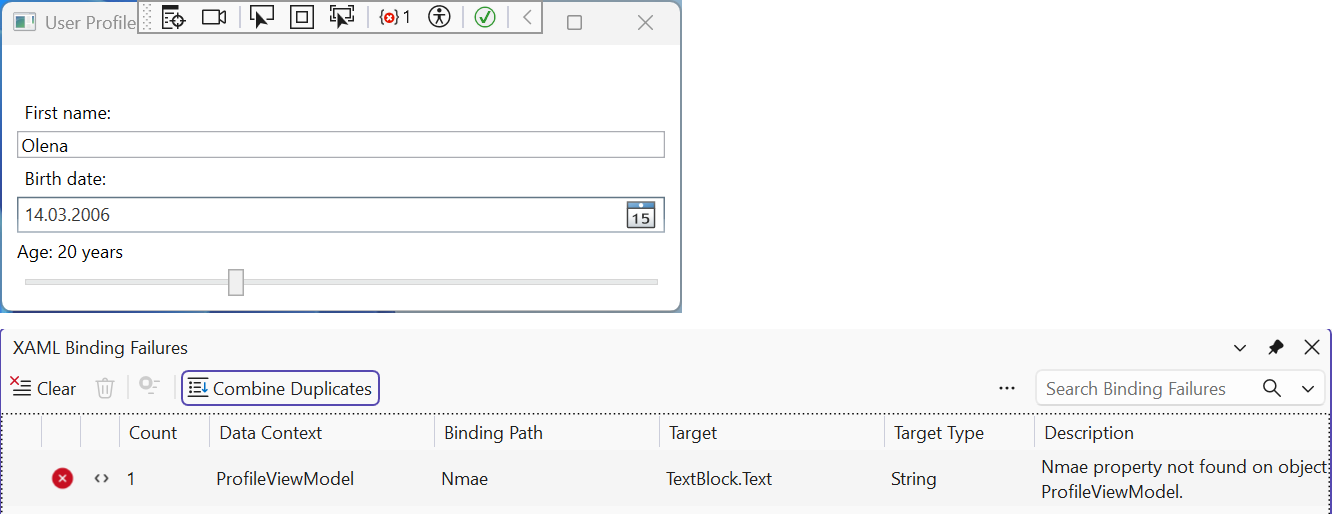
Fig. 13.3. The XAML Binding Failures window
Value conversion
Formatting
The simplest conversion is a StringFormat format string, which works when the target is of type string: {Binding Price, StringFormat={}{0:N2}} (the empty braces {} at the start are needed if the format begins with {), {Binding Price, StringFormat=Price: {0:C}}. The FallbackValue property sets the value used when the binding cannot be performed (no source or property), and TargetNullValue the value used when the source value is null. Several values in one string are combined by a MultiBinding with StringFormat="{}{0} {1}".
Important
WPF formats binding values not according to the Windows regional settings but according to the element's Language property, which defaults to en-US. So {0:C} without extra configuration shows $649.50 even on a Windows installation with, for example, Ukrainian regional settings. To make bindings use the current culture, override the property metadata once in App.xaml.cs:
cs
protected override void OnStartup(StartupEventArgs e)
{
    // Number and date format in bindings follows the Windows region.
    FrameworkElement.LanguageProperty.OverrideMetadata(
        typeof(FrameworkElement),
        new FrameworkPropertyMetadata(XmlLanguage.GetLanguage(
            CultureInfo.CurrentCulture.IetfLanguageTag)));
    base.OnStartup(e);
}
After that, with Ukrainian regional settings the same format gives 649,50 ₴, and {0:N2} gives 1 299,00.
Value converters
If a value needs to be converted rather than just formatted (a birth date to an age, bool to Visibility, a number to a color), you create a converter – a class with the IValueConverter interface (the System.Windows.Data namespace). The Convert method converts the source value for the target, and ConvertBack works in the opposite direction for TwoWay bindings. WPF already has a BooleanToVisibilityConverter. A converter is declared as a resource and specified in the binding: Converter={StaticResource AgeConverter}. For a MultiBinding there is the IMultiValueConverter interface, whose Convert method receives an array of values.
Example: a user profile
The window shows a greeting that is updated while the name is typed, the age based on the birth date, and lets you change the heading font size with a slider. The project was created with dotnet new wpf -n Profile; the ObservableObject class is shown above. The profile ViewModel and a converter that returns null for an empty date (then the binding shows TargetNullValue):
cs
namespace Profile;

public class ProfileViewModel : ObservableObject
{
    public string FirstName
    {
        get;
        set
        {
            if (SetProperty(ref field, value))
            {
                OnPropertyChanged(nameof(Greeting));
            }
        }
    } = "Olena";

    public DateTime? BirthDate
    {
        get;
        set => SetProperty(ref field, value);
    } = new DateTime(2006, 3, 14);

    public string Greeting => $"Hello, {FirstName}!";
}

// The AgeConverter.cs file
using System.Globalization;
using System.Windows.Data;

namespace Profile;

// DateTime? (birth date) → the string "19 years".
public class AgeConverter : IValueConverter
{
    public object? Convert(object? value, Type targetType,
        object? parameter, CultureInfo culture)
    {
        if (value is not DateTime birth)
        {
            return null;   // → TargetNullValue
        }
        DateTime today = DateTime.Today;
        int age = today.Year - birth.Year;
        if (birth.Date > today.AddYears(-age))
        {
            age--;
        }
        return $"{age} years";
    }

    public object? ConvertBack(object? value, Type targetType,
        object? parameter, CultureInfo culture) =>
        throw new NotSupportedException();
}
The MainWindow.xaml markup creates the ViewModel as the window's data context (the code-behind contains only the InitializeComponent() call):
xml
<Window x:Class="Profile.MainWindow"
    xmlns="http://schemas.microsoft.com/winfx/2006/xaml/presentation"
    xmlns:x="http://schemas.microsoft.com/winfx/2006/xaml"
    xmlns:local="clr-namespace:Profile"
    Title="User Profile" Width="360" SizeToContent="Height">
    <Window.Resources>
        <local:AgeConverter x:Key="AgeConverter"/>
    </Window.Resources>
    <Window.DataContext>
        <local:ProfileViewModel/>
    </Window.DataContext>
    <StackPanel Margin="10">
        <TextBlock Text="{Binding Greeting}" FontWeight="Bold"
                   FontSize="{Binding Value,
                   ElementName=sizeSlider}"/>
        <Label Content="_First name:" Target="{Binding
               ElementName=firstNameBox}"/>
        <TextBox x:Name="firstNameBox" Text="{Binding FirstName,
                 UpdateSourceTrigger=PropertyChanged}"/>
        <Label Content="_Birth date:"/>
        <DatePicker SelectedDate="{Binding BirthDate}"/>
        <TextBlock Margin="0,4" Text="{Binding BirthDate,
                   Converter={StaticResource AgeConverter},
                   StringFormat=Age: {0},
                   TargetNullValue=Age: unknown}"/>
        <Slider x:Name="sizeSlider" Minimum="12" Maximum="24"
                Value="16"/>
    </StackPanel>
</Window>
After startup, the heading shows Hello, Olena!, and the label below the date shows Age: 20 years (as of September 17, 2026). Typing Ivan in the name field immediately changes the heading to Hello, Ivan!, because the binding has UpdateSourceTrigger=PropertyChanged (without it the value would reach the ViewModel only after the focus moves to another element). Clearing the date shows Age: unknown, and the slider changes the heading font size through element-to-element binding without a single line of code.