
English
The host, configuration, and options
The .NET Generic Host
Besides DI, a console program usually needs configuration, logging, and graceful shutdown. All of this is brought together by the .NET Generic Host—an IHost object from the Microsoft.Extensions.Hosting package (Fig. 6.4, https://learn.microsoft.com/dotnet/core/extensions/generic-host). ASP.NET Core is built on it as well.
Figure 6.4. The components of the Generic Host
The Host.CreateApplicationBuilder(args) method creates a builder with default settings:
- the content root folder is the current folder;
- host configuration from environment variables with the
DOTNET_prefix and command-line arguments; - application configuration from
appsettings.json,appsettings.{Environment}.json, user secrets (only in Development), environment variables, and the command line; - the
Console,Debug,EventSource, andEventLog(Windows only) logging providers; - scope and dependency validation (
ValidateScopes,ValidateOnBuild) in Development.
The builder has the Services, Configuration, Logging, and Environment properties. The Build() method creates the host, and Run() or await RunAsync() starts it and waits for it to finish. The Worker Service template (dotnet new worker) creates exactly such a project: Program.cs with a host, a Worker class, the appsettings.json and appsettings.Development.json files, and Properties/launchSettings.json.
A hosted service (background service) implements IHostedService with the StartAsync and StopAsync methods and is registered with the AddHostedService<T>() method. It is more convenient to inherit the abstract BackgroundService class and override a single method, ExecuteAsync(CancellationToken): the token is canceled when the host stops.
The host stops when the user presses Ctrl+C (or the process receives SIGTERM) or code calls IHostApplicationLifetime.StopApplication(). The host cancels the tokens of the background services, calls their StopAsync, disposes the container, and returns control from Run. The ApplicationStarted, ApplicationStopping, and ApplicationStopped events of the same interface let you run code at each stage. The Environment.Exit method does not provide graceful shutdown.
Configuration
Configuration consists of settings that are changed without recompiling: server addresses, ports, intervals, log levels. The IConfiguration interface presents them as key–value pairs with string values. Hierarchical keys are separated by a colon: a Smtp section with a nested Port key in JSON gives the key Smtp:Port. Keys are case-insensitive (https://learn.microsoft.com/dotnet/core/extensions/configuration). The indexer config["Smtp:Host"] returns a string or null, GetValue<T> converts the value to the required type, GetSection returns a section, and GetConnectionString("Shop") reads the key ConnectionStrings:Shop.
Configuration providers and their priority
Values come from configuration providers. The host adds them in a certain order, and if a key exists in several sources, the one added later wins (Fig. 6.5, https://learn.microsoft.com/dotnet/core/extensions/configuration-providers). So general settings live in appsettings.json, and a particular computer or run overrides them without changing any files.
Figure 6.5. The priority order of configuration providers
- JSON files are copied to the output folder (the Worker Service template does this itself). The host rereads them after changes are saved (
reloadOnChange). - The environment is set by the
DOTNET_ENVIRONMENTvariable:Development,Staging,Production(the default). It determines whichappsettings.{Environment}.jsonfile is loaded and whether user secrets are included. The check in code:builder.Environment.IsDevelopment(). - Environment variables are written with a double underscore instead of a colon:
Smtp__Port. The colon does not work on all platforms, while__is supported everywhere. - Command-line arguments look like
Smtp:Port=465,--Smtp:Port 465, or/Smtp:Port 465; the forms with=and with a space are not mixed in one command. Afterdotnet run, the program's arguments are separated by--.
When launched from Visual Studio or with dotnet run, environment variables and arguments are taken from the launch profile Properties/launchSettings.json. The Worker Service template sets DOTNET_ENVIRONMENT=Development in it. The profile is edited in the Debug → <Project> Debug Properties window (Fig. 6.6); an .exe run directly does not read this file.
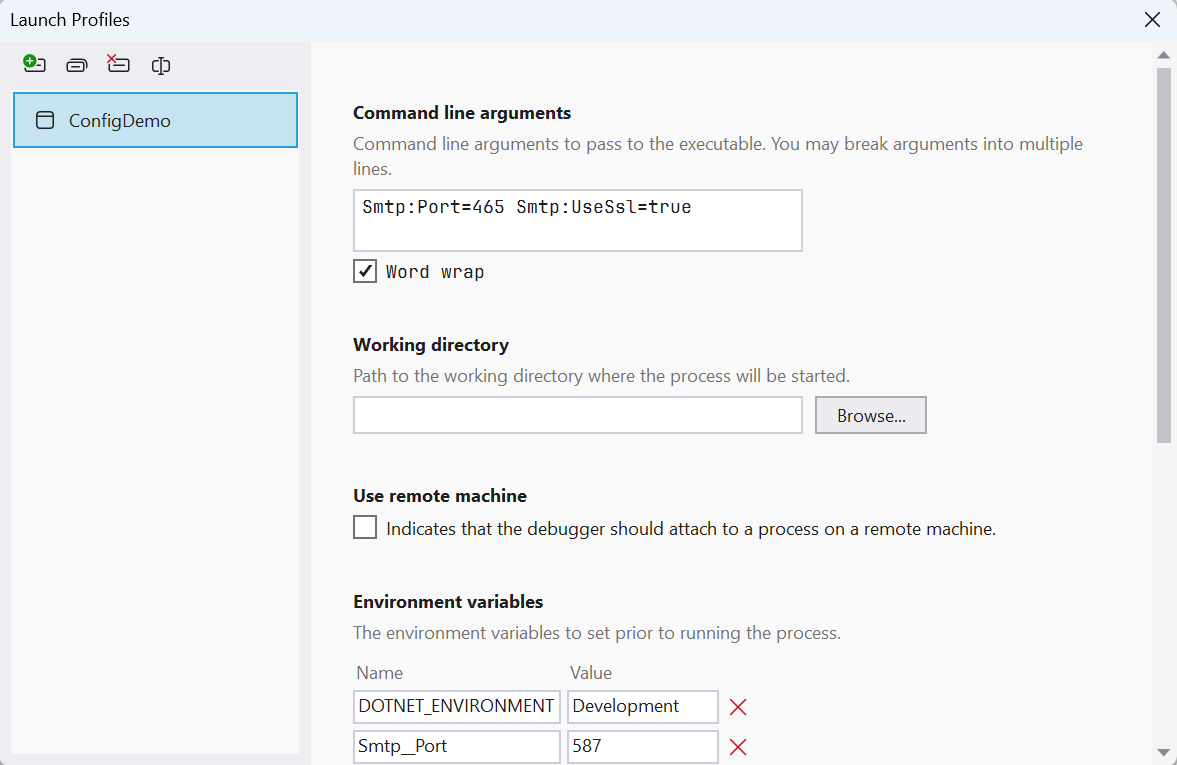
Figure 6.6. Environment variables and arguments in a launch profile
The ConfigDemo program (the Worker Service template) prints the SMTP settings. appsettings.json has the host smtp.example.com, port 25, and "UseSsl": false, and appsettings.Development.json has the host localhost and port 2525:
cs
HostApplicationBuilder builder = Host.CreateApplicationBuilder(args);
IConfiguration config = builder.Configuration;

string? host = config["Smtp:Host"];               // a string or null
int port = config.GetValue<int>("Smtp:Port");     // type conversion
bool ssl = config.GetValue("Smtp:UseSsl", defaultValue: true);
IConfigurationSection smtp = config.GetSection("Smtp");
string password = smtp["Password"] ?? "(not set)";

Console.WriteLine($"{builder.Environment.EnvironmentName}: " +
    $"{host}:{port}, SSL {ssl}, password {password}");
Four runs in PowerShell and their results (the service lines from dotnet run are omitted):
powershell
dotnet run                          # profile: Development
dotnet run --no-launch-profile      # no profile: Production
$env:Smtp__Port = "587"; dotnet run
dotnet run -- Smtp:Port=465 Smtp:UseSsl=true
Development: localhost:2525, SSL False, password (not set)
Production: smtp.example.com:25, SSL False, password (not set)
Development: localhost:587, SSL False, password (not set)
Development: localhost:465, SSL True, password (not set)The environment variable overrode both files, and the command line also overrode the environment variable, which remained set in the same PowerShell window.
User secrets
Passwords, API keys, and connection strings with passwords must not be written to appsettings.json: the file goes into Git (Topic 1), and a secret removed in the next commit remains in the history. On a developer's computer, secrets are stored by the Secret Manager (https://learn.microsoft.com/aspnet/core/security/app-secrets):
powershell
dotnet user-secrets init        # adds <UserSecretsId> to the .csproj
dotnet user-secrets set "Smtp:Password" "Pa55-w0rd"
dotnet user-secrets list        # Smtp:Password = Pa55-w0rd
dotnet user-secrets remove "Smtp:Password"
dotnet user-secrets clear
Secrets are written to the %APPDATA%\Microsoft\UserSecrets\<UserSecretsId>\secrets.json file outside the project folder, so they do not end up in the repository. The Worker Service template already contains a UserSecretsId. In Visual Studio, the file is opened by the Manage User Secrets command in the project's context menu (Fig. 6.7). The host includes secrets only in the Development environment: after set, the ConfigDemo program run with the profile prints Development: localhost:2525, SSL False, password Pa55-w0rd, and without the profile (not set).
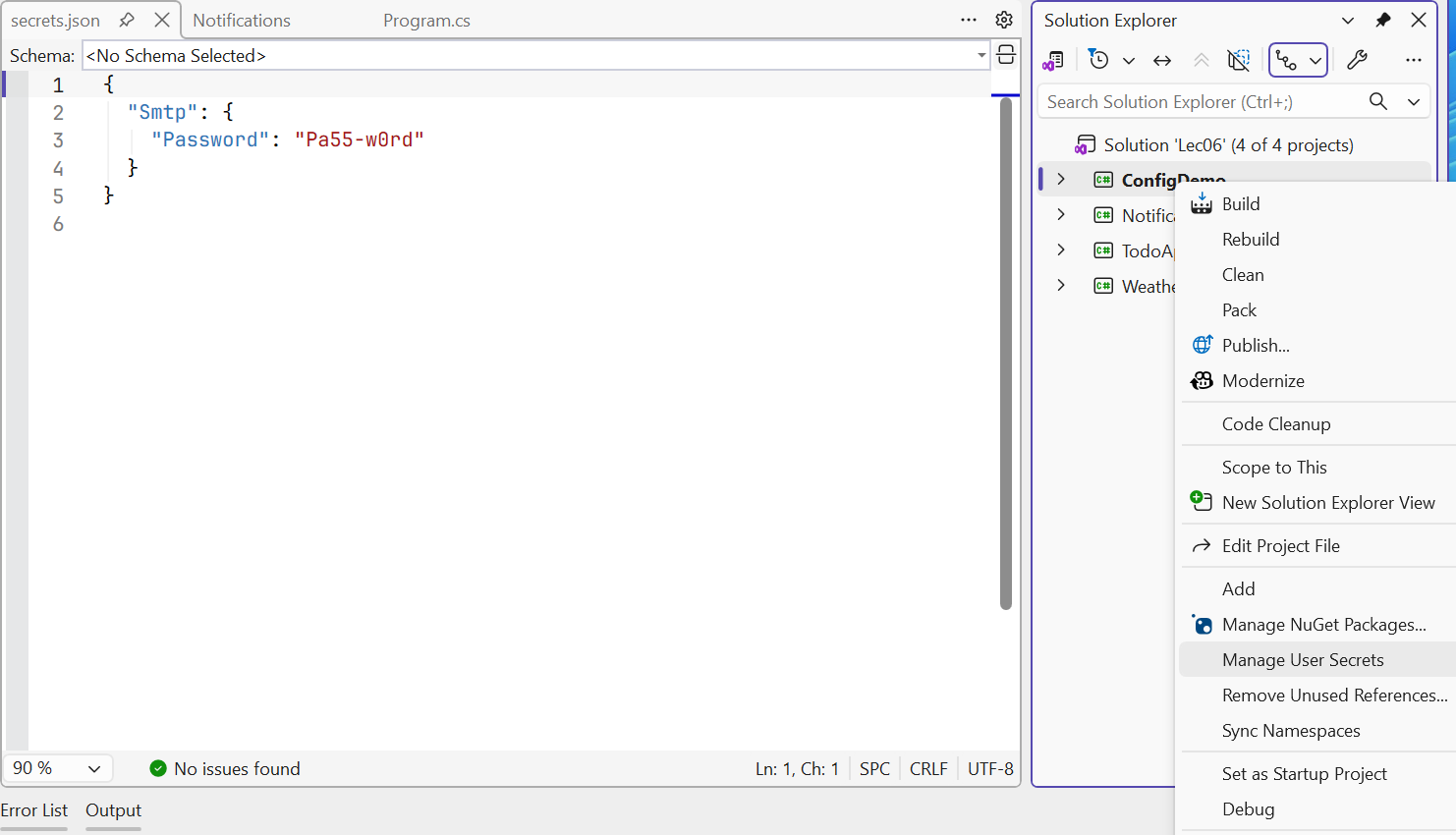
Figure 6.7. User secrets in Visual Studio
Important
The Secret Manager does not encrypt the file and is intended for development only. On a server, secrets are passed through environment variables or dedicated vaults (for example, Azure Key Vault). If a secret has already ended up in Git, it is considered exposed and must be changed.
The options pattern
Reading settings by string keys is inconvenient: a typo in "Smtp:Prot" gives null, and the type is checked only at run time. The options pattern binds a configuration section to a class whose properties have the same names (https://learn.microsoft.com/dotnet/core/extensions/options). An options class must have a public parameterless constructor and properties with get and set.
cs
public class DiscountOptions
{
    public int Percent { get; set; }
}

builder.Services.Configure<DiscountOptions>(
    builder.Configuration.GetSection("Discount"));
// or with validation (see below):
builder.Services.AddOptions<DiscountOptions>()
    .Bind(builder.Configuration.GetSection("Discount"));
A service receives options through one of three interfaces (Table 6.2).
Table 6.2. Options pattern interfaces
| Interface | Lifetime | Value after the file changes |
|---|---|---|
IOptions<T> | Singleton | does not change: Value is read once |
IOptionsSnapshot<T> | Scoped | new in each new scope; cannot be used in a Singleton |
IOptionsMonitor<T> | Singleton | always the current CurrentValue, the OnChange event |
The program reads the discount in three ways, changes appsettings.json while running, and reads it again a second later:
cs
var monitor = host.Services
    .GetRequiredService<IOptionsMonitor<DiscountOptions>>();
monitor.OnChange(o =>
    Console.WriteLine($"  OnChange: {o.Percent} %"));
var fixedValue = host.Services
    .GetRequiredService<IOptions<DiscountOptions>>();

Print("Start");
File.WriteAllText("appsettings.json",
    """{ "Discount": { "Percent": 15 } }""");
await Task.Delay(1000);                  // the file is reread
Print("After the file change");

void Print(string title)
{
    using IServiceScope scope = host.Services.CreateScope();
    var snapshot = scope.ServiceProvider
        .GetRequiredService<IOptionsSnapshot<DiscountOptions>>();
    Console.WriteLine(
        $"{title}: IOptions {fixedValue.Value.Percent}, " +
        $"Snapshot {snapshot.Value.Percent}, " +
        $"Monitor {monitor.CurrentValue.Percent}");
}
Start: IOptions 5, Snapshot 5, Monitor 5
OnChange: 15 %
OnChange: 15 %
After the file change: IOptions 5, Snapshot 15, Monitor 15The OnChange event fired twice: the file system reports a file write with several notifications, so the handler must be prepared for repeats.
Validating options
An invalid value in the configuration is better detected at startup than after an hour of running. OptionsBuilder supports three kinds of validation:
ValidateDataAnnotations()—the[Required],[Range],[RegularExpression]attributes from theSystem.ComponentModel.DataAnnotationsnamespace (theMicrosoft.Extensions.Options.DataAnnotationspackage);Validate(o => condition, "message")—an arbitrary rule, for example a relationship between two properties;- a class that implements
IValidateOptions<T>for complex rules.
Without additional calls, validation runs on the first access to Value, and calling ValidateOnStart() moves it to host startup: the host does not start and logs an OptionsValidationException with a list of all errors. An example is given in the "Weather monitor" program below.