
English
Menus, dialogs, and tables
Menus, toolbars, and standard dialogs
Menus and strips
Application commands are placed in menus and on the strips from the Menus & Toolbars group of the Toolbox (https://learn.microsoft.com/dotnet/desktop/winforms/controls/menustrip-control-overview-windows-forms):
MenuStrip—the main menu at the top of the form; its items are of typeToolStripMenuItemand can contain nested items (DropDownItems) andToolStripSeparatorseparators;ContextMenuStrip—a context menu that appears after a right-click on a control; it is assigned with that control'sContextMenuStripproperty;ToolStrip—a toolbar withToolStripButtonbuttons, lists, and input fields;StatusStrip—a status bar at the bottom of the form withToolStripStatusLabellabels.
Menus are created in the designer: after placing a MenuStrip on the form, you type item names in the Type Here box (Fig. 3.11). An item's ShortcutKeys property sets shortcut keys (Ctrl+O, Ctrl+S) that work without opening the menu, and & in the name sets an access key for keyboard navigation (&File opens with Alt+F). Menu items and toolbar buttons have a Click event, just like ordinary buttons, so one handler can be subscribed to both.
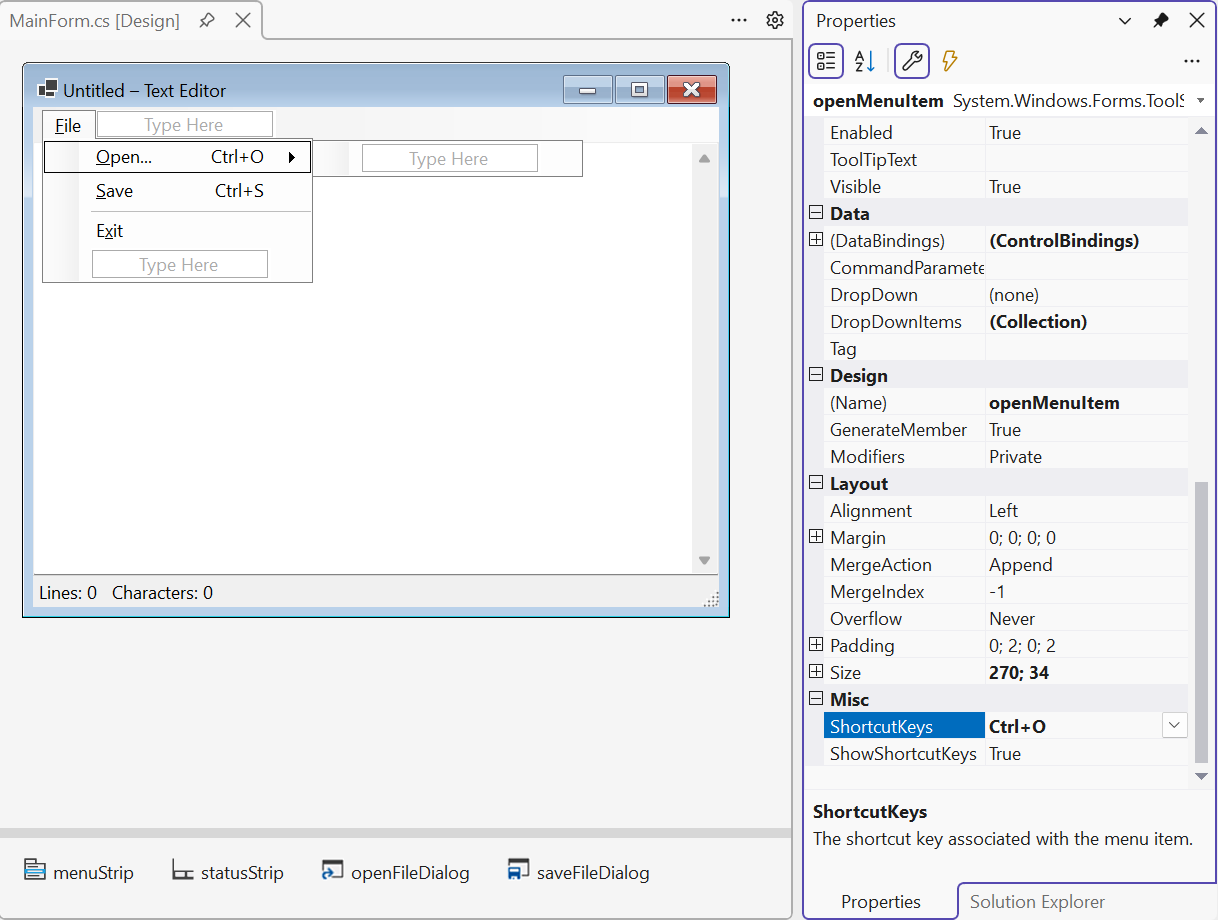
Figure 3.11. Creating the main menu in the designer
Standard dialogs
For common tasks, Windows has standard dialog boxes, which Windows Forms provides as components (Table 3.4). The ShowDialog() method shows a dialog modally and returns DialogResult.OK if the user confirmed the choice (https://learn.microsoft.com/dotnet/desktop/winforms/controls/dialog-box-controls-and-components-windows-forms).
Table 3.4. Standard dialog boxes
| Component | Purpose and result |
|---|---|
OpenFileDialog | choosing a file to open: FileName, FileNames (Multiselect), Filter |
SaveFileDialog | choosing a file name to save to: FileName, DefaultExt, OverwritePrompt |
FolderBrowserDialog | choosing a folder: SelectedPath |
ColorDialog | choosing a color: Color |
FontDialog | choosing a font: Font |
The Filter property specifies "description|pattern" pairs separated by the | character: "Text files (*.txt)|*.txt|All files (*.*)|*.*".
Example: a simple text editor
The MainForm form contains a MenuStrip with a File menu (the items Open… with Ctrl+O, Save with Ctrl+S, a separator, and Exit), the editorTextBox field (Multiline = true, Dock = Fill, ScrollBars = Vertical), a StatusStrip with the statusLabel label, and the openFileDialog and saveFileDialog components with a text file filter. The editor remembers the file path and whether there are unsaved changes, shows them in the window title, and shows the number of lines and characters in the status bar. For brevity, the example does not catch file read and write exceptions (IOException, UnauthorizedAccessException), which a real application shows in a MessageBox:
cs
namespace TextEditor;

public partial class MainForm : Form
{
    private string? filePath;     // null – the file has not been saved yet
    private bool isModified;

    public MainForm()
    {
        InitializeComponent();
        UpdateStatus();
    }

    private void openMenuItem_Click(object sender, EventArgs e)
    {
        if (!ConfirmDiscard()
            || openFileDialog.ShowDialog(this) != DialogResult.OK)
        {
            return;
        }

        string path = openFileDialog.FileName;
        editorTextBox.Text = File.ReadAllText(path);
        filePath = path;
        isModified = false;
        UpdateStatus();
    }

    private void saveMenuItem_Click(object sender, EventArgs e) =>
        Save();

    private void exitMenuItem_Click(object sender, EventArgs e) =>
        Close();                  // FormClosing fires next

    private void editorTextBox_TextChanged(object sender, EventArgs e)
    {
        isModified = true;
        UpdateStatus();
    }

    private void MainForm_FormClosing(object sender,
        FormClosingEventArgs e)
    {
        e.Cancel = !ConfirmDiscard();
    }

    // true – we can continue: there are no changes, they were saved,
    // or the user discarded them.
    private bool ConfirmDiscard()
    {
        if (!isModified)
        {
            return true;
        }
        DialogResult answer = MessageBox.Show(
            "Save changes to the document?", "Text Editor",
            MessageBoxButtons.YesNoCancel, MessageBoxIcon.Question);
        return answer == DialogResult.No
            || answer == DialogResult.Yes && Save();
    }

    private bool Save()
    {
        if (filePath is null)
        {
            if (saveFileDialog.ShowDialog(this) != DialogResult.OK)
            {
                return false;
            }
            filePath = saveFileDialog.FileName;
        }
        File.WriteAllText(filePath, editorTextBox.Text);
        isModified = false;
        UpdateStatus();
        return true;
    }

    private void UpdateStatus()
    {
        string name = Path.GetFileName(filePath) ?? "Untitled";
        Text = $"{name}{(isModified ? "*" : "")} – Text Editor";
        statusLabel.Text = $"Lines: {editorTextBox.Lines.Length}"
            + $"   Characters: {editorTextBox.TextLength}";
    }
}
Assigning editorTextBox.Text raises the TextChanged event, which marks the document as modified, so the isModified flag is reset after the text is loaded. The Exit item only closes the form, and the question about saving changes is asked by the FormClosing handler, so it also appears after clicking the window's close button or pressing Alt+F4. The Save method asks for a file name only for a new document.
After opening a notes.txt file with two lines, the title reads notes.txt – Text Editor, and the status bar shows Lines: 2 and Characters: 23 (newline characters are counted too). After a third line is added, the title changes to notes.txt* – Text Editor. An attempt to close the window shows the question Save changes to the document? (Fig. 3.12): Cancel keeps the window open, Yes saves the file and closes the window, and No closes it without saving.
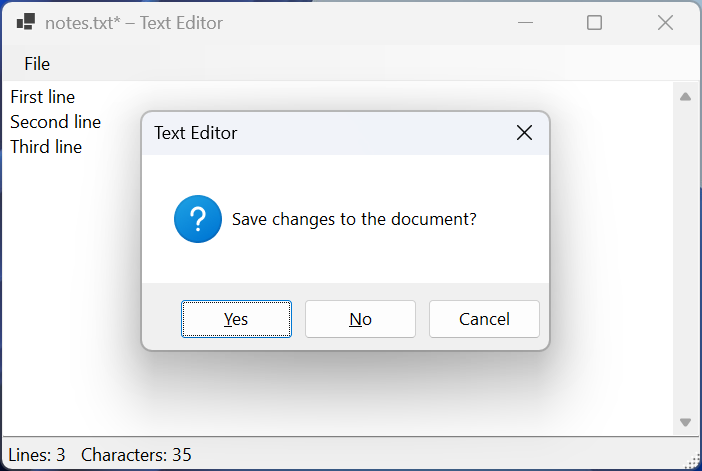
Figure 3.12. The question about saving changes in the text editor
Custom dialog boxes, data tables, and the timer
Modal and modeless forms
An application can have several forms. A new form is added with the Project → Add Form (Windows Forms)… command and shown in one of two ways:
form.Show()—modeless: the user can work with both windows at the same time, and the method returns control immediately;form.ShowDialog(this)—modal: the owner window is unavailable until the dialog is closed, and the method returns aDialogResult.
A modal form is closed by assigning any value except None to its DialogResult property. You can set a button's DialogResult property in the designer: then clicking it closes the form with this result without any code. The form's AcceptButton and CancelButton properties link buttons to the Enter and Esc keys. A form shown with the ShowDialog method is not disposed after closing, so it is created in a using statement.
Data is passed into a form through constructor parameters or properties, and back through properties or a modified object after DialogResult.OK. A dialog should not access the main form's controls directly: this keeps the forms independent.
The DataGridView table and data binding
DataGridView displays data as a table. The simplest approach is to bind it to a list of objects: the table creates columns from the class's public properties itself. To update the table after the list changes, use BindingList<T> (the System.ComponentModel namespace): unlike List<T>, it notifies the table when items are added and removed. The intermediate BindingSource component tracks the current (selected) row: the Current and Position properties (https://learn.microsoft.com/dotnet/desktop/winforms/controls/bindingsource-component-overview).
The timer
The System.Windows.Forms.Timer component raises the Tick event every Interval (in milliseconds) while its Enabled property is true (the Start and Stop methods). The Tick handler runs on the UI thread, so it can change the form's controls. The timer does not guarantee accuracy: if the thread is busy, the event is delayed, so time is measured with Stopwatch or DateTime.Now, and the timer only updates the display (https://learn.microsoft.com/dotnet/api/system.windows.forms.timer). .NET also has other Timer classes (System.Timers.Timer, System.Threading.Timer) that invoke the handler on another thread, so in a Windows Forms application the full name System.Windows.Forms.Timer avoids confusion.
Example: a book catalog
The main form contains a ToolStrip with Add and Edit buttons, the bookGrid table (Dock = Fill, ReadOnly = true, SelectionMode = FullRowSelect), the bookBindingSource component, and a status bar with the countLabel label. The BookForm edit form has the fields titleTextBox, authorTextBox, yearNumeric (1450–2100), priceNumeric (two decimal places), the buttons okButton and cancelButton (DialogResult = Cancel), and an ErrorProvider; AcceptButton = okButton, CancelButton = cancelButton, FormBorderStyle = FixedDialog. The Book class (the Book.cs file) describes the data, and BookForm receives a book in its constructor and changes it only after OK is clicked:
cs
namespace BookCatalog;

public class Book
{
    public string Title { get; set; } = "";
    public string Author { get; set; } = "";
    public int Year { get; set; }
    public decimal Price { get; set; }
}

public partial class BookForm : Form
{
    private readonly Book book;

    public BookForm(Book book)
    {
        InitializeComponent();
        this.book = book;
        Text = book.Title.Length == 0 ? "New Book" : "Edit Book";
        titleTextBox.Text = book.Title;
        authorTextBox.Text = book.Author;
        yearNumeric.Value = book.Year;
        priceNumeric.Value = book.Price;
    }

    private void okButton_Click(object sender, EventArgs e)
    {
        string title = titleTextBox.Text.Trim();
        if (title.Length == 0)
        {
            errorProvider.SetError(titleTextBox, "Enter the title");
            titleTextBox.Focus();
            return;           // the form stays open
        }
        book.Title = title;
        book.Author = authorTextBox.Text.Trim();
        book.Year = (int)yearNumeric.Value;
        book.Price = priceNumeric.Value;
        DialogResult = DialogResult.OK;  // close the modal form
    }
}
The main form stores books in a BindingList<Book> and binds the table through a BindingSource. The editButton_Click handler is subscribed both to the Edit button and to the table's CellDoubleClick event: the DataGridViewCellEventArgs type is a descendant of EventArgs, so a method with an EventArgs parameter works for both events. BindingList<T> does not know about property changes of an existing object, so after editing the table is refreshed by calling ResetCurrentItem():
cs
using System.ComponentModel;

namespace BookCatalog;

public partial class MainForm : Form
{
    private readonly BindingList<Book> books = new()
    {
        new() { Title = "Clean Code", Author = "Robert C. Martin",
                Year = 2008, Price = 890m },
        new() { Title = "C# 12 in a Nutshell",
                Author = "Joseph Albahari",
                Year = 2023, Price = 2150m }
    };

    public MainForm()
    {
        InitializeComponent();
        bookBindingSource.DataSource = books;
        bookGrid.DataSource = bookBindingSource;
        bookGrid.Columns["Price"]!.DefaultCellStyle.Format = "N2";
        books.ListChanged += (s, e) => UpdateStatus();
        UpdateStatus();
    }

    private void addButton_Click(object sender, EventArgs e)
    {
        var book = new Book { Year = DateTime.Today.Year };
        using var dialog = new BookForm(book);
        if (dialog.ShowDialog(this) == DialogResult.OK)
        {
            books.Add(book);
            bookBindingSource.Position = books.Count - 1;
        }
    }

    private void editButton_Click(object sender, EventArgs e)
    {
        if (bookBindingSource.Current is not Book book)
        {
            return;
        }
        using var dialog = new BookForm(book);
        if (dialog.ShowDialog(this) == DialogResult.OK)
        {
            bookBindingSource.ResetCurrentItem();
            UpdateStatus();
        }
    }

    private void UpdateStatus() =>
        countLabel.Text = $"Books: {books.Count}   "
            + $"Total: {books.Sum(b => b.Price):N2} UAH";
}
The table gets the columns Title, Author, Year, Price, and the status bar initially shows Books: 2 and Total: 3,040.00 UAH. Clicking OK in the new book form with an empty title keeps the form open and shows an error icon. After adding the book Kobzar (Taras Shevchenko, 1840, 450.50), the status bar shows Books: 3 and Total: 3,490.50 UAH; if you change the price to 520 and click Cancel, the data does not change, and after OK the table and the total are updated (Total: 3,560.00 UAH) (Fig. 3.13). Deleting a book is a call to books.Remove(book) after confirmation in a MessageBox.
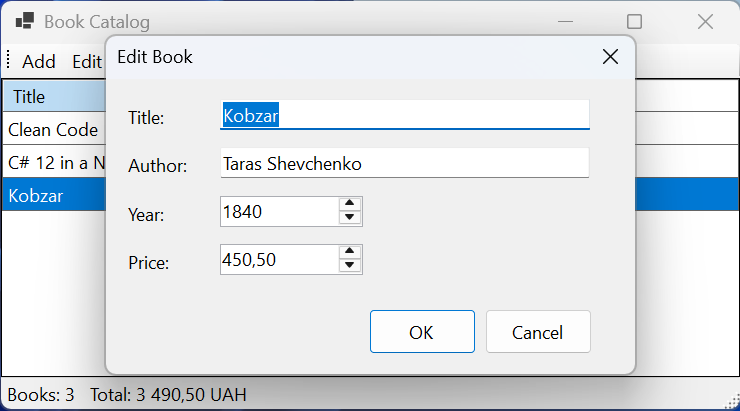
Figure 3.13. The book catalog and the modal edit form
New features in .NET 9–10 and publishing
Dark mode. In .NET 9, Windows Forms received preview support for dark mode, and in .NET 10 the Application.SetColorMode method is no longer experimental. It is called in Main after ApplicationConfiguration.Initialize(). The SystemColorMode.System argument enables the theme chosen in Windows settings, Dark always uses the dark theme, and Classic (the default) uses the light one (https://learn.microsoft.com/dotnet/desktop/winforms/whats-new/net100).
Asynchronous methods. .NET 9 introduced the Control.InvokeAsync, Form.ShowAsync, Form.ShowDialogAsync, and TaskDialog.ShowDialogAsync methods, and in .NET 10 the methods for showing forms and dialogs are no longer experimental. They are needed when a handler performs long-running operations with async and await; they are covered in detail in Topic 5 (https://learn.microsoft.com/dotnet/desktop/winforms/whats-new/net90).
Publishing. The dotnet publish command prepares an application for delivery to users. A framework-dependent application consists of a few files but requires the .NET Desktop Runtime 10 to be installed. A self-contained application includes the runtime, so it works without installing .NET; the PublishSingleFile parameter bundles it into a single .exe file (about 110 MB for the temperature converter example) (https://learn.microsoft.com/dotnet/core/deploying/):
powershell
dotnet publish -c Release
dotnet publish -c Release -r win-x64 --self-contained `
    -p:PublishSingleFile=true