
English
Practice
Example 1. A habit tracker
Create a .NET MAUI "Habit tracker" application. The user adds a habit (the name is not empty), marks it as done every day with the Done button (pressing Undo again removes the mark), and deletes a habit with a swipe. For each habit a streak is shown – the number of consecutive days ending today or yesterday; the list is sorted by streak length. The data is kept between runs.
The model, the list row, and the ViewModel (the HabitsViewModel.cs file). The habits are serialized to JSON and stored as a single string in Preferences; the IPreferences service arrives through the constructor:
cs
using System.Collections.ObjectModel;
using System.Text.Json;
using CommunityToolkit.Mvvm.ComponentModel;
using CommunityToolkit.Mvvm.Input;

namespace Habits;

public class Habit
{
    public string Name { get; set; } = "";
    public List<DateOnly> DoneDays { get; set; } = [];

    // Consecutive days ending today or yesterday.
    public int Streak(DateOnly today)
    {
        DateOnly day = DoneDays.Contains(today)
            ? today : today.AddDays(-1);
        int count = 0;
        while (DoneDays.Contains(day))
        {
            count++;
            day = day.AddDays(-1);
        }
        return count;
    }
}

public record HabitRow(Habit Habit, bool IsDoneToday, int Streak)
{
    public string Name => Habit.Name;
    public string StreakText => Streak switch
    {
        0 => "No streak yet",
        1 => "1 day",
        _ => $"{Streak} days in a row"
    };
    public string ButtonText => IsDoneToday ? "Undo" : "Done";
}

public partial class HabitsViewModel(IPreferences preferences)
    : ObservableObject
{
    private const string Key = "habits";
    private List<Habit> habits = [];

    public ObservableCollection<HabitRow> Rows { get; } = [];

    [ObservableProperty]
    [NotifyCanExecuteChangedFor(nameof(AddCommand))]
    public partial string NewName { get; set; } = "";

    public void Load()
    {
        string json = preferences.Get(Key, "[]");
        habits = JsonSerializer.Deserialize<List<Habit>>(json) ?? [];
        Refresh();
    }

    private bool CanAdd() => !string.IsNullOrWhiteSpace(NewName);

    [RelayCommand(CanExecute = nameof(CanAdd))]
    private void Add()
    {
        habits.Add(new Habit { Name = NewName.Trim() });
        NewName = "";
        SaveAndRefresh();
    }

    [RelayCommand]
    private void Toggle(HabitRow row)
    {
        DateOnly today = DateOnly.FromDateTime(DateTime.Today);
        if (!row.Habit.DoneDays.Remove(today))
        {
            row.Habit.DoneDays.Add(today);
        }
        SaveAndRefresh();
    }

    [RelayCommand]
    private void Delete(HabitRow row)
    {
        habits.Remove(row.Habit);
        SaveAndRefresh();
    }

    private void SaveAndRefresh()
    {
        preferences.Set(Key, JsonSerializer.Serialize(habits));
        Refresh();
    }

    private void Refresh()
    {
        DateOnly today = DateOnly.FromDateTime(DateTime.Today);
        Rows.Clear();
        foreach (Habit h in habits.OrderByDescending(
                     h => h.Streak(today)))
        {
            Rows.Add(new HabitRow(h, h.DoneDays.Contains(today),
                h.Streak(today)));
        }
    }
}
The HabitsPage.xaml page: an input field with a button and a list, in whose template the done button and the swipe action access the ViewModel commands through RelativeSource:
xml
<ContentPage xmlns="http://schemas.microsoft.com/dotnet/2021/maui"
             xmlns:x="http://schemas.microsoft.com/winfx/2009/xaml"
             xmlns:local="clr-namespace:Habits"
             x:Class="Habits.HabitsPage"
             x:DataType="local:HabitsViewModel"
             Title="Habits">
    <Grid RowDefinitions="Auto,*" ColumnDefinitions="*,Auto"
          Padding="16" RowSpacing="12" ColumnSpacing="8">
        <Entry Placeholder="New habit" Text="{Binding NewName}"
               ReturnCommand="{Binding AddCommand}" />
        <Button Grid.Column="1" Text="Add"
                Command="{Binding AddCommand}" />

        <CollectionView Grid.Row="1" Grid.ColumnSpan="2"
                        ItemsSource="{Binding Rows}">
            <CollectionView.EmptyView>
                <Label Text="Add your first habit" />
            </CollectionView.EmptyView>
            <CollectionView.ItemTemplate>
                <DataTemplate x:DataType="local:HabitRow">
                    <SwipeView>
                        <SwipeView.RightItems>
                            <SwipeItems>
                                <SwipeItem Text="Delete"
                                    BackgroundColor="LightGray"
                                  Command="{Binding DeleteCommand,
                                    Source={RelativeSource
                                    AncestorType={x:Type
                                    local:HabitsViewModel}},
                                    x:DataType=local:HabitsViewModel}"
                                    CommandParameter="{Binding .}" />
                            </SwipeItems>
                        </SwipeView.RightItems>
                        <Grid ColumnDefinitions="*,Auto" Padding="8">
                            <VerticalStackLayout>
                                <Label Text="{Binding Name}"
                                       FontSize="18" />
                                <Label Text="{Binding StreakText}"
                                       FontSize="12" />
                            </VerticalStackLayout>
                            <Button Grid.Column="1"
                                Text="{Binding ButtonText}"
                                Command="{Binding ToggleCommand,
                                    Source={RelativeSource
                                    AncestorType={x:Type
                                    local:HabitsViewModel}},
                                    x:DataType=local:HabitsViewModel}"
                                CommandParameter="{Binding .}" />
                        </Grid>
                    </SwipeView>
                </DataTemplate>
            </CollectionView.ItemTemplate>
        </CollectionView>
    </Grid>
</ContentPage>
The page constructor HabitsPage(HabitsViewModel viewModel) assigns BindingContext and calls viewModel.Load(). In MauiProgram, AddSingleton(Preferences.Default), AddSingleton<HabitsViewModel>(), and AddSingleton<HabitsPage>() are registered.
The HabitRow row is an immutable record, so after every change the ViewModel rebuilds the Rows collection, and the CollectionView shows the new values. The NewName property is bound to the Entry two-way, and the [NotifyCanExecuteChangedFor] attribute makes the Add button unavailable for an empty field; ReturnCommand runs the same command with the Enter key. In a console test, IPreferences was replaced with a dictionary, and the ViewModel works without the MAUI platform. For a habit marked on September 14, 15, and 16, the Streak method returns 3 on September 17, 2026, after a mark on September 17 it returns 4, and for a habit with a single mark on September 12 it returns 0. After the habits Drink water and Read are added and Read is marked, the list looks like this:
Read | 1 day | Undo
Drink water | No streak yet | Done
and Preferences stores under the habits key the string [{"Name":"Drink water","DoneDays":[]},{"Name":"Read","DoneDays":["2026-09-17"]}]. On Windows, the Delete action is revealed by dragging the row to the left with the mouse (Fig. 15.14).
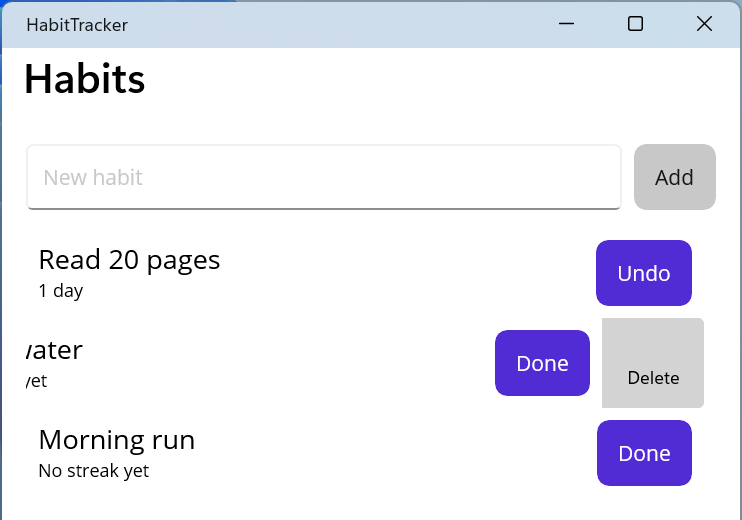
Fig. 15.14. The "Habit tracker" application
Example 2. A photo diary
Create a "Photo diary" application that adds photos from the gallery or the camera to a diary, saves a copy of the photo in the application folder, and saves the caption and date in a local SQLite database. The main page shows the entries as a two-column grid from newest to oldest, and the entry page lets you change the caption or delete the entry together with the photo file.
The sqlite-net-pcl package was added to the project. The database access class opens the connection on first access:
cs
using SQLite;

namespace PhotoDiary;

public class DiaryEntry
{
    [PrimaryKey, AutoIncrement]
    public int Id { get; set; }
    public string PhotoPath { get; set; } = "";
    public string Caption { get; set; } = "";
    public DateTime Date { get; set; }
}

public class DiaryDatabase(string path)
{
    private SQLiteAsyncConnection? connection;

    // Open the database and create the table on first access.
    private async Task<SQLiteAsyncConnection> GetConnectionAsync()
    {
        if (connection is null)
        {
            connection = new SQLiteAsyncConnection(path,
                SQLiteOpenFlags.ReadWrite | SQLiteOpenFlags.Create
                | SQLiteOpenFlags.SharedCache);
            await connection.CreateTableAsync<DiaryEntry>();
        }
        return connection;
    }

    public async Task<List<DiaryEntry>> GetAllAsync()
    {
        var db = await GetConnectionAsync();
        return await db.Table<DiaryEntry>()
            .OrderByDescending(e => e.Date).ToListAsync();
    }

    public async Task SaveAsync(DiaryEntry entry)
    {
        var db = await GetConnectionAsync();
        if (entry.Id == 0)
        {
            await db.InsertAsync(entry);   // Id is filled in here
        }
        else
        {
            await db.UpdateAsync(entry);
        }
    }

    // GetAsync(int id): Table<DiaryEntry>().Where(e => e.Id == id)
    //     .FirstOrDefaultAsync(); DeleteAsync(entry): db.DeleteAsync.
}
The main page ViewModel (abbreviated) receives the database and IMediaPicker through its constructor. After a photo is picked or taken, it is copied to AppDataDirectory, the entry is saved, and the application navigates to the entry page with a string id parameter:
cs
using System.Collections.ObjectModel;
using CommunityToolkit.Mvvm.ComponentModel;
using CommunityToolkit.Mvvm.Input;

namespace PhotoDiary;

public partial class DiaryViewModel(DiaryDatabase database,
    IMediaPicker mediaPicker) : ObservableObject
{
    public ObservableCollection<DiaryEntry> Entries { get; } = [];

    // LoadAsync fills Entries from database.GetAllAsync().

    [RelayCommand]
    private async Task PickAsync()
    {
        List<FileResult> photos = await mediaPicker.PickPhotosAsync(
            new MediaPickerOptions
            {
                SelectionLimit = 1,
                MaximumWidth = 1600,
                MaximumHeight = 1600
            });
        await AddAsync(photos.FirstOrDefault());
    }

    [RelayCommand]
    private async Task CaptureAsync()
    {
        if (!mediaPicker.IsCaptureSupported)
        {
            await Shell.Current.DisplayAlertAsync("Camera",
                "This device has no camera.", "OK");
            return;
        }
        await AddAsync(await mediaPicker.CapturePhotoAsync());
    }

    private async Task AddAsync(FileResult? photo)
    {
        if (photo is null)
        {
            return;                        // the user canceled
        }
        // A copy of the photo in the app folder does not depend on the gallery.
        string target = Path.Combine(FileSystem.AppDataDirectory,
            $"{Guid.NewGuid():N}{Path.GetExtension(photo.FileName)}");
        using (Stream source = await photo.OpenReadAsync())
        using (FileStream file = File.Create(target))
        {
            await source.CopyToAsync(file);
        }
        var entry = new DiaryEntry
        {
            PhotoPath = target,
            Date = DateTime.Now
        };
        await database.SaveAsync(entry);
        await Shell.Current.GoToAsync($"entry?id={entry.Id}");
    }
}
EntryViewModel implements IQueryAttributable: in the ApplyQueryAttributes method the id value arrives as a string, so it is converted with int.TryParse, the entry is loaded with the GetAsync method, and the Caption and PhotoPath properties are filled. The SaveCommand updates the caption, and DeleteCommand deletes the entry and the file with File.Delete(entry.PhotoPath); both navigate back with "..". The DiaryPage.xaml page has Pick and Camera toolbar buttons and a CollectionView with a GridItemsLayout (Span="2"); the template contains an Image (Source="{Binding PhotoPath}", Aspect="AspectFill"), the caption, and the date, and a TapGestureRecognizer runs OpenCommand. In MauiProgram, new DiaryDatabase(dbPath) (the diary.db3 file in AppDataDirectory), MediaPicker.Default, both ViewModels and pages, and the entry route are registered. On Android the CAMERA permission is declared in the manifest for the camera; on Windows IsCaptureSupported depends on whether a camera is present, and SelectionLimit is not supported.
A console test of the DiaryDatabase class: after the entries Park (9/10/2026) and Campus (9/15/2026) are saved, they get Id 1 and 2, and GetAllAsync returns
2 Campus 9/15/2026
1 Park 9/10/2026
After the caption of the first entry is changed, GetAsync(1) returns City park, and after the second one is deleted, one entry remains in the database and GetAsync(2) returns null (Fig. 15.15).
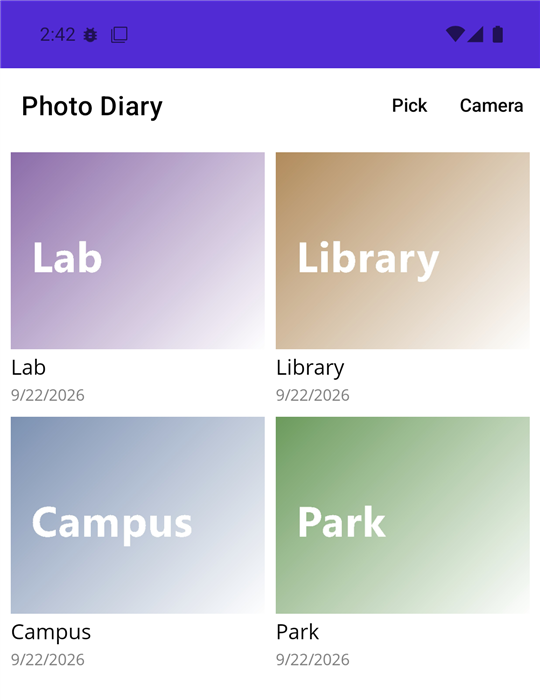
Fig. 15.15. The "Photo diary" application on Android
Example 3. A compass and level
Create a "Compass and level" application that shows the direction to magnetic north in degrees and in words (N, NE, E…), rotates a pointer arrow, and, based on accelerometer data, shows the device tilt and moves the "bubble" of a level. If a sensor is missing (for example, on a Windows computer), the application reports it instead of crashing.
The MainPage.xaml page contains a VerticalStackLayout with the headingLabel and tiltLabel labels, a needle arrow label (the ▲ character, FontSize="64"), and a 200×200 Border with StrokeShape="Ellipse", inside which lies a 24×24 Ellipse named bubble. The page code (abbreviated) and a helper calculation class:
cs
namespace CompassLevel;

public static class LevelMath
{
    private static readonly string[] Directions =
        ["N", "NE", "E", "SE", "S", "SW", "W", "NW"];

    // 0° – north, 90° – east; each direction's sector is 45°.
    public static string ToDirection(double heading)
    {
        double normalized = (heading % 360 + 360) % 360;
        int index = (int)Math.Round(normalized / 45) % 8;
        return Directions[index];
    }

    // Tilt along the Y (pitch) and X (roll) axes in degrees.
    public static (double Pitch, double Roll) Tilt(
        double x, double y, double z)
    {
        double pitch = Math.Atan2(y, Math.Sqrt(x * x + z * z));
        double roll = Math.Atan2(x, Math.Sqrt(y * y + z * z));
        return (pitch * 180 / Math.PI, roll * 180 / Math.PI);
    }
}

public partial class MainPage : ContentPage
{
    private const double MaxShift = 90;   // half the frame width

    public MainPage()
    {
        InitializeComponent();
    }

    protected override void OnAppearing()
    {
        base.OnAppearing();
        if (Compass.Default.IsSupported)
        {
            Compass.Default.ReadingChanged += OnCompassChanged;
            Compass.Default.Start(SensorSpeed.UI,
                applyLowPassFilter: true);
        }
        else
        {
            headingLabel.Text = "Compass is not supported";
        }
        if (Accelerometer.Default.IsSupported)
        {
            Accelerometer.Default.ReadingChanged += OnAccelerometer;
            Accelerometer.Default.Start(SensorSpeed.UI);
        }
        else
        {
            tiltLabel.Text = "Accelerometer is not supported";
        }
    }

    // OnDisappearing: Stop() and unsubscribing from both sensors' events.

    private void OnCompassChanged(object? sender,
        CompassChangedEventArgs e)
    {
        double heading = e.Reading.HeadingMagneticNorth;
        headingLabel.Text =
            $"{heading:F0}° {LevelMath.ToDirection(heading)}";
        needle.Rotation = -heading;       // the arrow points north
    }

    private void OnAccelerometer(object? sender,
        AccelerometerChangedEventArgs e)
    {
        var a = e.Reading.Acceleration;
        var (pitch, roll) = LevelMath.Tilt(a.X, a.Y, a.Z);
        bool level = Math.Abs(pitch) < 1 && Math.Abs(roll) < 1;
        tiltLabel.Text = level
            ? "Level"
            : $"Pitch {pitch:F1}°, roll {roll:F1}°";
        // The bubble moves opposite to the tilt.
        bubble.TranslationX = Math.Clamp(-roll * 3, -MaxShift,
            MaxShift);
        bubble.TranslationY = Math.Clamp(pitch * 3, -MaxShift,
            MaxShift);
    }
}
The sensors are started in OnAppearing and stopped in OnDisappearing so as not to drain the battery when the page is not visible. The SensorSpeed.UI speed guarantees that the handlers are called on the main thread, so the labels are changed without MainThread. The applyLowPassFilter parameter smooths the compass readings only on Android. A console test of LevelMath (with US regional settings):
0 N
44 NE
90 E
181 S
350 N
-30 NW
0 0 -1 -> Pitch 0.0°, roll 0.0°
0 0.5 -0.866 -> Pitch 30.0°, roll 0.0°
0.2588 0 -0.9659 -> Pitch 0.0°, roll 15.0°
0.01 -0.01 -1 -> Pitch -0.6°, roll 0.6°
Each line is the input data (a heading in degrees or the acceleration components x, y, z in units of g) and the result. A device lying horizontally has an acceleration of (0, 0, −1) and shows Level. On Windows without sensors, the page shows Compass is not supported and Accelerometer is not supported (Fig. 15.16).
Screenshot
CompassLevel on a physical Android phone via USB debugging: heading "312° NW", rotated arrow, bubble off-center, "Pitch 4.2°, roll -2.5°"
Fig. 15.16. The "Compass and level" application on an Android phone