
English
Debugging and common problems
Debugging, Debug and Release configurations
Debugging means finding and fixing errors that cause a program to behave incorrectly. A debugger lets you execute a program step by step and inspect variable values:
- Set a breakpoint: click in the margin to the left of a line number or press F9. A red dot marks the line.
- Start debugging with F5. Execution pauses before the line with the breakpoint.
- Step through the program: F10 (Step Over) moves to the next line, F11 (Step Into) enters a method, Shift+F11 (Step Out) leaves a method, and F5 continues to the next breakpoint.
- Inspect variable values in Locals (all local variables) and Watch (selected expressions), or hover over a variable in the editor (Fig. 1.27). Press Shift+F5 to stop debugging.
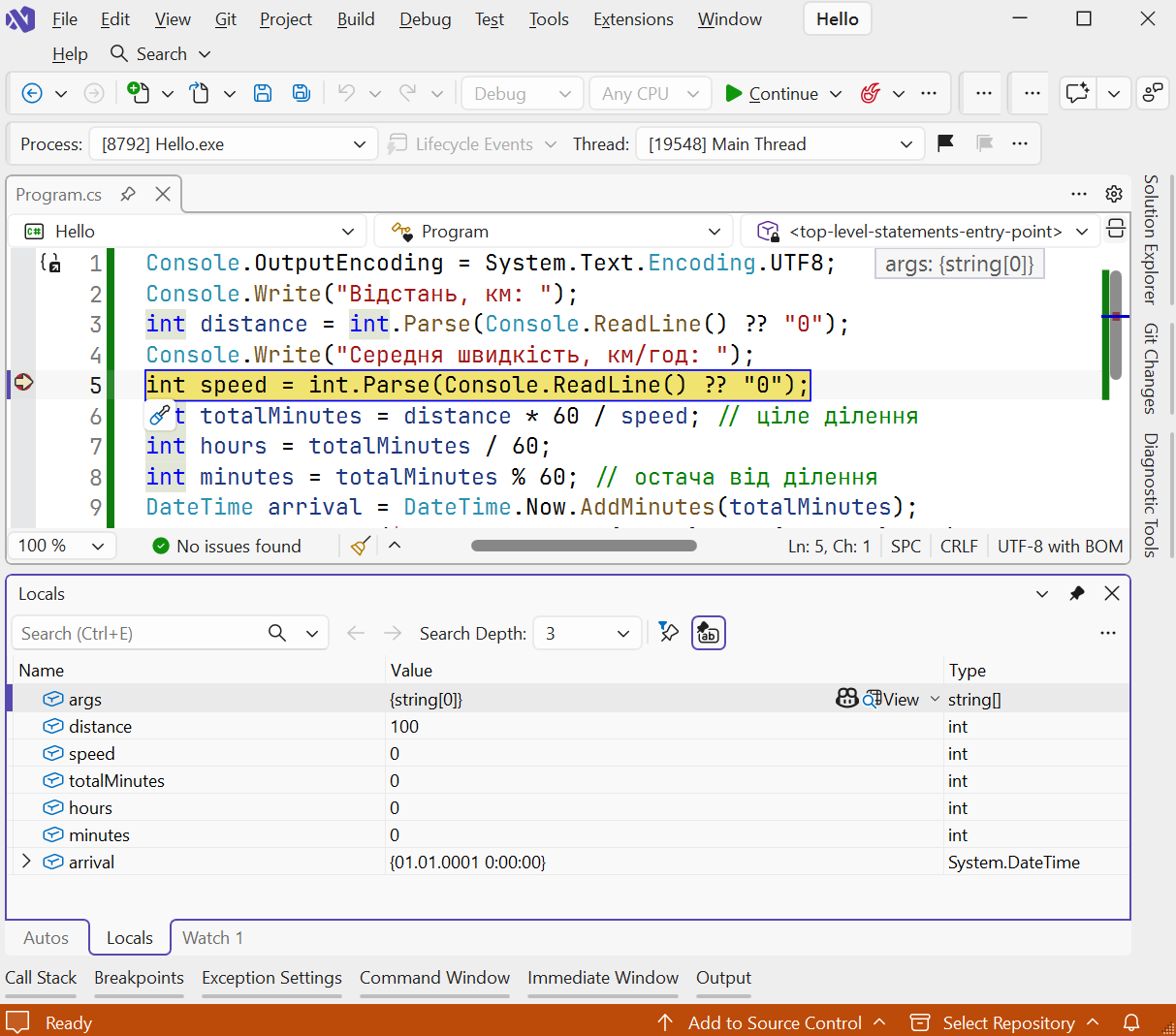
Figure 1.27. Breakpoint and Locals window during debugging
Visual Studio creates two build configurations for a project, selectable in the toolbar list (Fig. 1.28):
- Debug — includes debugging information and does not optimize code; used during development. Output is in
bin/Debug/net10.0; - Release — optimizes code and is intended for the finished application. Output is in
bin/Release/net10.0.
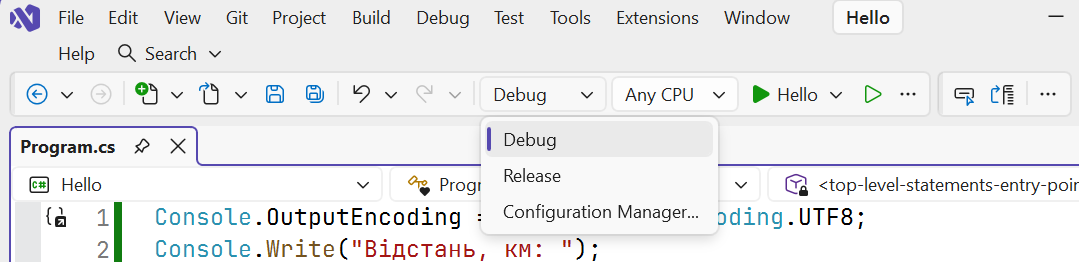
Figure 1.28. Selecting a build configuration in the toolbar
To give the program to another user, publish it with dotnet publish -c Release or through Build → Publish Selection in Visual Studio. To run the published program on another computer, the same version of the .NET Runtime must be installed (https://learn.microsoft.com/dotnet/core/deploying/). Visual Studio debugging tools are documented in detail at https://learn.microsoft.com/visualstudio/debugger/ and covered in Topic 6 of this course.
Common beginner problems
Table 1.6 lists problems commonly encountered during the first runs and how to solve them.
Table 1.6. Common problems and solutions
| Problem | Cause and solution |
|---|---|
The dotnet command is not found (is not recognized) | The SDK is not installed, or the terminal was opened before installation. Open a new terminal and run dotnet --info. |
| Error NETSDK1045: The current .NET SDK does not support targeting .NET 10.0 | An outdated SDK is installed. Install the .NET 10 SDK or update Visual Studio. |
? characters appear instead of Ukrainian letters | The encoding has not been set. Add Console.OutputEncoding = System.Text.Encoding.UTF8; at the beginning of the program. |
FormatException during int.Parse or double.Parse | The input is not a number or uses a different decimal separator. Use TryParse and check the result. |
| Error CS8802: Only one compilation unit can have top-level statements | Multiple files contain top-level statements. Keep them only in Program.cs. |
| The console window closes immediately after launch | The program was started outside the development environment. Run it with Ctrl+F5 or from a terminal. |
| Console App is missing from the template list | The .NET desktop development workload is not installed. Add it in Visual Studio Installer. |