
English
dotnet CLI and program structure
The dotnet CLI command-line tool
All development environments invoke the same dotnet CLI command-line tool when building and running applications. You can also use it directly: in a terminal on Windows, Linux, or macOS, on a server without a graphical interface, or in automation scripts. Table 1.4 lists the main commands; the full reference is at https://learn.microsoft.com/dotnet/core/tools/.
Table 1.4. Main dotnet CLI commands
| Command | Purpose |
|---|---|
dotnet --info | information about installed SDKs and runtimes |
dotnet new list | list project templates |
dotnet new console -n Hello | create a Hello console project in a new folder |
dotnet new sln -n Labs | create a Labs.slnx solution file |
dotnet sln add Hello | add a project to the solution |
dotnet build | build the project (Debug configuration) |
dotnet run | build and run the project |
dotnet run -- a b | run with command-line arguments a and b |
dotnet clean | delete build output |
dotnet add package Humanizer | add a NuGet package |
dotnet publish -c Release | prepare the application for distribution |
An example of creating a solution with one project and running the program (Fig. 1.24):
mkdir Labs
cd Labs
dotnet new sln -n Labs
dotnet new console -n Hello
dotnet sln add Hello
dotnet run --project Hello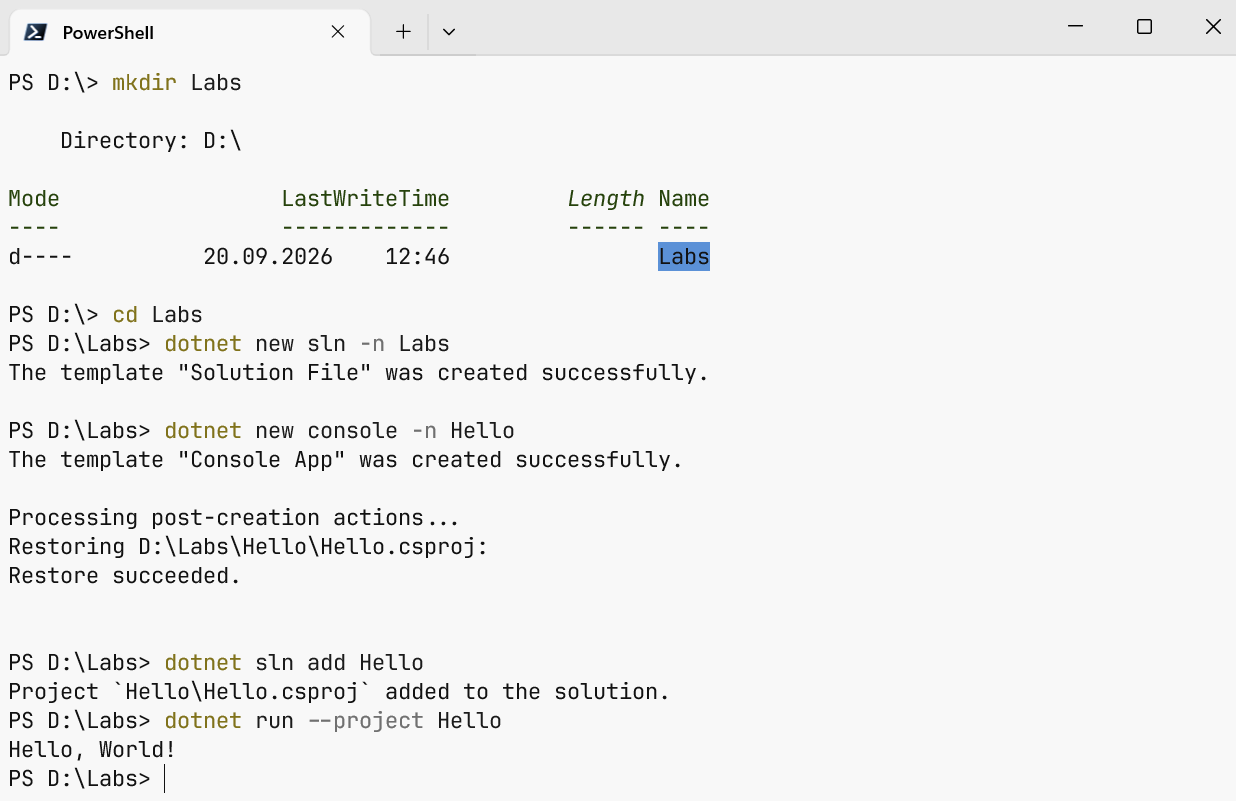
Figure 1.24. Creating and running a project in the terminal
For small experiments, .NET 10 lets you run a single .cs file without creating a project. In any text editor, create a file named hello.cs containing Console.WriteLine("Hello!"); and run dotnet run hello.cs in the terminal. These file-based apps are convenient for trying individual lecture examples (https://learn.microsoft.com/dotnet/core/sdk/file-based-apps).
Projects and solutions
A project is a set of source files and settings that build into one assembly: a console program, library, or web application. A solution groups related projects, such as an application, a library, and a test project (Fig. 1.25). After creating and building the solution in the previous example, its folder structure is:
Labs/
├── Labs.slnx                 solution file
└── Hello/                    project folder
    ├── Hello.csproj          project file
    ├── Program.cs            source code
    ├── bin/Debug/net10.0/    built program
    │   ├── Hello.dll
    │   └── Hello.exe
    └── obj/                  intermediate build files
Figure 1.25. Solution and project structure
The solution file has a .slnx extension (.sln in earlier versions); Visual Studio displays the solution structure in Solution Explorer. The Hello.csproj project file uses XML:
xml
<Project Sdk="Microsoft.NET.Sdk">
  <PropertyGroup>
    <OutputType>Exe</OutputType>
    <TargetFramework>net10.0</TargetFramework>
    <ImplicitUsings>enable</ImplicitUsings>
    <Nullable>enable</Nullable>
  </PropertyGroup>
</Project>
The Sdk attribute specifies the build rules, OutputType the assembly type (Exe for an executable, Library for a library), and TargetFramework the target platform version. ImplicitUsings enables implicit imports of common namespaces, and Nullable enables checking reference types that may hold null. All .cs files in the project folder are included automatically. The bin and obj folders are created during the build; do not add them to version control or send them to your instructor—they can be recreated from the source code.
Third-party libraries are added as NuGet packages—archives containing assemblies published in the repository at https://www.nuget.org. The dotnet add package Humanizer command adds a package reference to the project file, and the package downloads automatically during the build. In Visual Studio, add packages through Project → Manage NuGet Packages… For details: https://learn.microsoft.com/nuget/what-is-nuget.
C# program structure
The modern console application template contains just one line:
cs
Console.WriteLine("Hello, World!");These are top-level statements. During compilation, they are placed in an automatically generated Main method—the program's entry point, where execution begins. This form is convenient for small programs; only one file in a project can contain top-level statements. The equivalent program with an explicit structure looks like this:
cs
namespace Hello;

internal class Program
{
    // Entry point: execution begins with the Main method.
    static void Main(string[] args)
    {
        Console.WriteLine("Hello, World!");
    }
}
The main program elements are:
- a namespace (
namespace) groups related types and prevents naming conflicts; thenamespace Hello;declaration applies to the whole file; - the class
Programcontains theMainentry point; theinternalmodifier makes the class accessible only within the assembly; Mainis static, so it is called without creating an object of the class; theargsarray contains command-line arguments, and the method can return anint—the program's exit code;- a
usingdirective imports a namespace so you do not need to write fully qualified type names (System.Console); thanks toImplicitUsings,System,System.IO,System.Linq, and other namespaces are imported implicitly; - each statement ends with a semicolon, and code blocks are enclosed in braces;
- comments extend from
//to the end of a line or appear between/*and*/;///comments are used to document code.
C# is case-sensitive: Main and main are different names. Naming conventions use PascalCase for types and methods (ReadLine) and camelCase for local variables and parameters (userName). The complete conventions are documented at https://learn.microsoft.com/dotnet/csharp/fundamentals/coding-style/identifier-names.
Compilation errors
If code breaks the language rules, the compiler reports compilation errors instead of producing an assembly. Each error has a code, description, file name, and line number. In Visual Studio, errors are underlined with red wavy lines in the editor and listed in Error List (View → Error List); double-clicking an error moves the cursor to the relevant line (Fig. 1.26). For example, this code contains errors:
cs
Console.WriteLine("Hello")
console.WriteLine(name);
The compiler reports:
error CS1002: ; expectedAfter adding the semicolon, the following errors appear:
error CS0103: The name 'console' does not exist in the current context
error CS0103: The name 'name' does not exist in the current context
The first line was missing a semicolon; in the second line, console starts with a lowercase letter, and name has not been declared. You can look up each error by its code in the documentation at https://learn.microsoft.com/dotnet/csharp/language-reference/compiler-messages/.
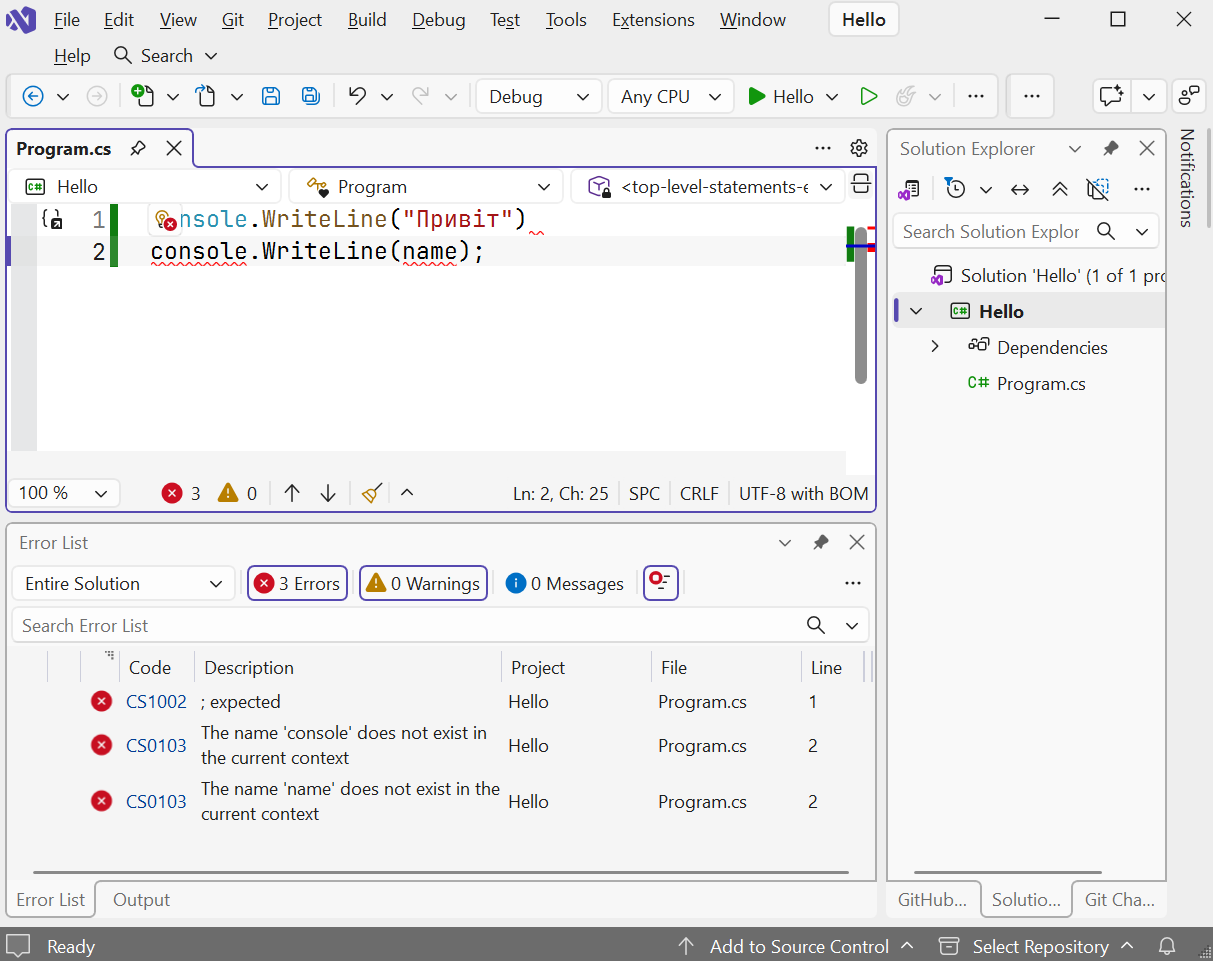
Figure 1.26. Compilation errors in Error List
Tip
Fix errors one at a time, starting with the first: a single error often causes several messages on subsequent lines.