
English
Building and debugging
Solution, project, and files on disk
A solution groups projects; a project defines the list of source files and the rules for producing the result. For example, the Labs solution can contain Hello and future lab projects. A solution has a .slnx or .sln file, depending on the storage format. The .vcxproj file stores the settings of a C++ project, and .vcxproj.filters stores the logical grouping of files in Solution Explorer. The Source Files folder in the IDE is not necessarily a separate folder on disk (Fig. 1.13).
Figure 1.13. The solution, source files, and generated files
The .vs folder contains local IDE service data. Directories such as x64/Debug and x64/Release contain build outputs; the exact paths are set by the Output Directory and Intermediate Directory properties. An object file .obj can be in a different folder than the finished .exe. Don’t move them manually to “fix” the project: after the next build, the system will use the configured directories again. Keep the source .cpp files, the project, and the solution in Git, and ignore the generated outputs and .vs.
Example 2. A business card with alignment
In this example, the data is set in the code; no keyboard input is needed. Create a separate console project or replace the contents of the existing file. Keep only one main function in a single executable project.
cpp
#include <print>

int main()
{
    std::println("+------------------------------+");
    std::println("| {:<28} |", "Student: Olena Koval");
    std::println("| {:<28} |", "Group: KN-24");
    std::println("| {:<28} |", "Course: C++26");
    std::println("+------------------------------+");
    return 0;
}
{} is a placeholder for the next argument. After a colon, you can specify formatting rules: < aligns to the left, and 28 sets the minimum field width. The space before and after the field creates padding from the border. The width doesn’t truncate longer text: if a name doesn’t fit, widen the border. The output for the given data:
text
+------------------------------+
| Student: Olena Koval         |
| Group: KN-24                 |
| Course: C++26                |
+------------------------------+
The number of fields and the argument types must match the format. To print a curly brace itself, double it in the format string: {{ or }}. Use a monospace font for aligning tables. Complex Unicode characters can have a special display width, so check what the border actually looks like in the terminal rather than just counting UTF-8 bytes.
Example 3. Room area and renovation cost
Suppose the room is 5 m long and 4 m wide, and finishing one square meter costs 250 UAH. The program calculates the area, the perimeter, and the cost of finishing the floor. The values are set in the code, so all runs with the same data give the same result.
cpp
#include <print>

int main()
{
    const double length = 5.0;
    const double width = 4.0;
    const double price = 250.0;
    const double area = length * width;
    const double perimeter = 2.0 * (length + width);
    const double total = area * price;

    std::println("Area: {:.2f} m²", area);
    std::println("Perimeter: {:.2f} m", perimeter);
    std::println("Cost: {:.2f} UAH", total);
    return 0;
}
double stores numbers with a fractional part; const prevents changing the value after its initial assignment. The names length, width, and price make the formula clearer than a set of numbers. The * operator means multiplication, and parentheses set the order of evaluation. {:.2f} prints a number in fixed-point format with two digits after the decimal point. This changes how the result is presented, not the precision of all the preceding calculations.
text
Area: 20.00 m²
Perimeter: 18.00 m
Cost: 5000.00 UAH
double is convenient for classroom geometry. For exact money accounting, you need to define separately how amounts are represented and how they are rounded: most decimal fractions can’t be represented exactly as a binary floating-point number. The integer values given here don’t demonstrate all such errors. Changing the output to three decimal places doesn’t by itself make a financial algorithm exact.
Self-check
Change the width to 3.5 m. First calculate the result by hand, then rebuild the program. Explain which lines of the output should change. If the output stays the same, check that the file was saved and look at the build log.
Errors, warnings, and debugging
A compilation error means the compiler can’t accept the program. For example, writing std::printn instead of std::println contains an unknown member name of the std namespace (typical diagnostic C2039). C2065 reports an undeclared identifier, and C2143 reports a syntax error such as a missing character. The line number often shows where the error was noticed, not where its real cause is. A missing ; can show up on the next line.
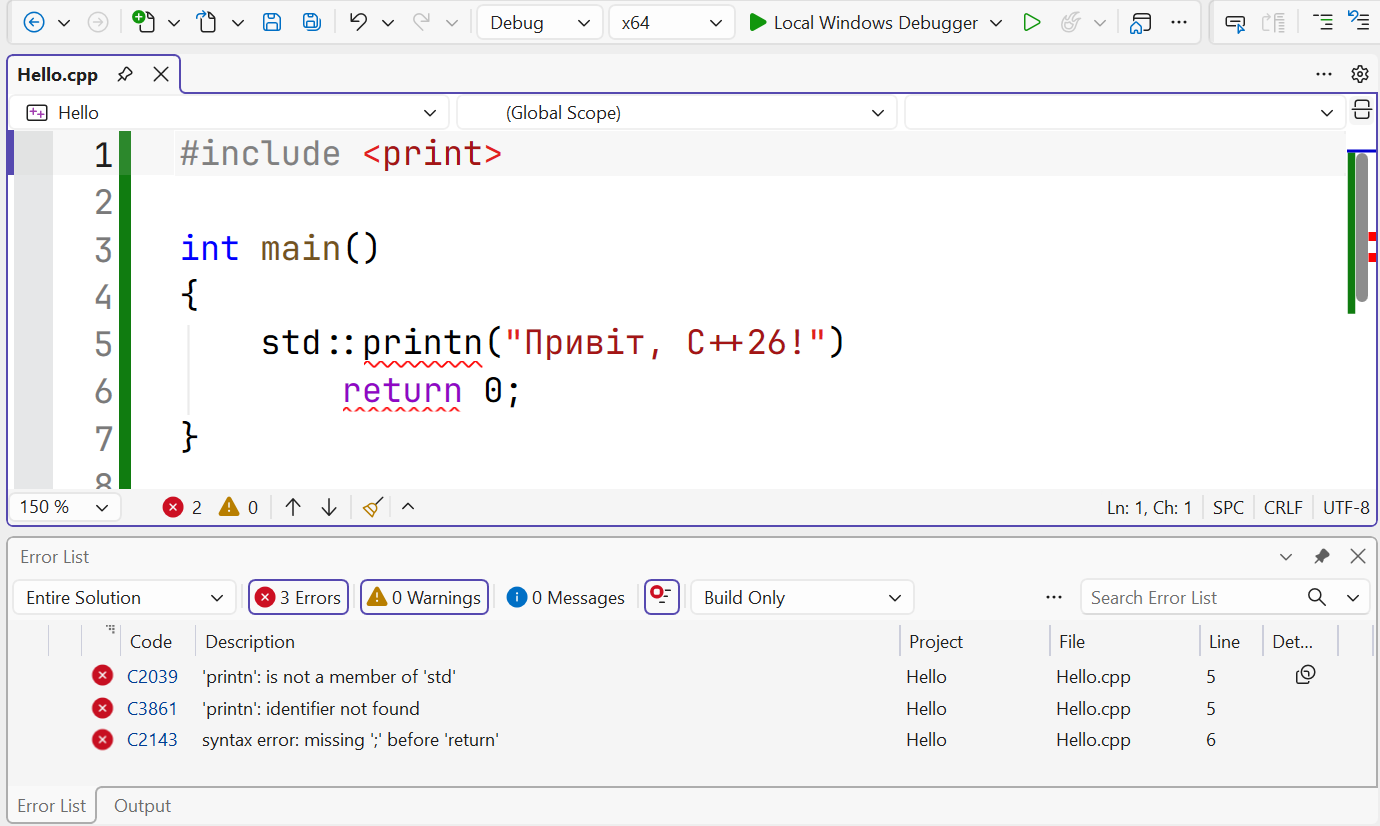
Figure 1.14. Compiler messages in the Error List window
A linker error occurs after compilation. For example, a function is declared and called, but its definition didn’t make it into the build. MSVC may report LNK2019 (unresolved external symbol). Adding a semicolon won’t solve the problem of a missing implementation. Check whether the required .cpp belongs to the project, whether it is excluded from the build, and whether the name is spelled correctly.
A warning doesn’t always stop the build, but it points to a possible defect. Don’t turn off /W4 just to get an empty list: read the message and fix the cause. IntelliSense hints while you edit are useful, but the final evidence is the result of an actual build. In Error List, you can select the Build source, and in Output, you can view the full log, including the command and paths.
A practical order for fixing errors: save the file, run the build, read the first meaningful error, open its line by double-clicking, also check the preceding lines, make one clear change, and rebuild. Dozens of messages are often the consequence of a single missing bracket. If the IDE offers to run the last successful build after a failed build, decline: its result doesn’t test the text you just changed.
A logic error doesn’t break the syntax but gives a wrong answer. For example, length + width instead of length * width compiles fine but doesn’t calculate the area. Set a breakpoint (F9) before the output of Example 3, start with F5, and look at area in Locals. F10 executes the next line, F5 continues, and Shift+F5 stops debugging. A manual calculation for simple data is an independent check of the formula.
Building from the command line
The IDE hides many details, but it calls separate tools. Developer PowerShell for VS 2026 sets up environment variables so that cl.exe, the linker, headers, and libraries can be found. Open it through the menu Tools → Command Line → Developer PowerShell or the corresponding shortcut. A regular PowerShell without this setup may not know the cl command. Documentation: https://learn.microsoft.com/cpp/build/building-on-the-command-line.
Example 4. The same program without an IDE project
Create the folder D:\Labs\cli and save in it the file hello.cpp with the complete code of Example 1, including #include <print>. Go to this folder and run the commands. The form with the header is used here; import std; requires a separate module build, described in the documentation.
powershell
Set-Location D:\Labs\cli
cl /std:c++latest /EHsc /utf-8 /W4 /permissive- hello.cpp
.\hello.exe
$LASTEXITCODE
cl without /c also performs linking. Switches start with /, and the last argument is the source file. Running .\hello.exe means the file from the current folder; PowerShell is not required to look for executables here without an explicit prefix. After the compiler messages, the program output and the exit code:
text
Hello, C++26!
0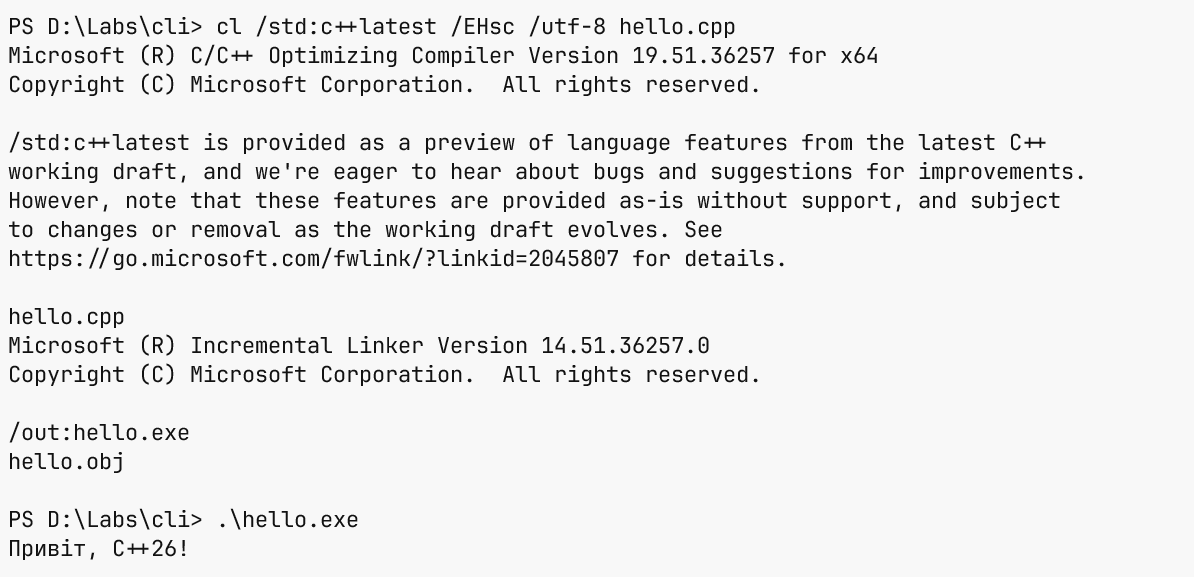
Figure 1.15. Compiling and running in Developer PowerShell
Check $LASTEXITCODE right after the external command you care about: the next call may change the value. If cl failed, don’t run the hello.exe left over from a previous build. For the lab work, save the command in a README together with the compiler version shown in its banner. Don’t copy someone else’s version number as the result of your own check. The command line and the IDE must use consistent switches.