
English
Errors and the debugger
An error as a violation of expected behavior
Debugging doesn’t start with a random change to the code, but with a precise description of the discrepancy. Write down the input, the expected result and the actual result. A reproducible example lets you test a hypothesis about the cause. If an error occurs only occasionally, save the sequence of actions, the build version, the configuration and the required external data. Without this, a fix is hard to tell apart from a lucky successful run.
A syntax error prevents compilation, and a linker error prevents the creation of a finished file. A logic error lets the program run, but the answer is wrong. A runtime error may show up as an exception, termination of the process or a sanitizer message. Undefined behavior is not obliged to show up in any of these ways: for example, an out-of-bounds access to an array may corrupt other data without an immediate crash.
Not every failure is a defect in the program. A missing file, an invalid string format or an insufficient balance may be expected situations that the interface must describe. At the same time, an invalid index produced by your own algorithm may indicate a violation of an internal invariant. These cases require different ways of diagnosis and recovery.
Example 1. An average grade and integer division
The program deliberately shows an incorrect and a corrected expression. The value of sum is 11, and count is 3. A conversion after the division doesn’t restore the lost fractional part.
cpp
#include <vector>
#include <print>

int main()
{
    const std::vector<int> grades{2, 4, 5};
    int total{};
    for (int grade : grades) total += grade;
    const int count = static_cast<int>(grades.size());
    const double wrong = total / count;
    const double correct = static_cast<double>(total) / count;
    std::println("Wrong: {:.2f}", wrong);
    std::println("Correct: {:.2f}", correct);
}
text
Wrong: 3.00
Correct: 3.67
Set a breakpoint before computing wrong. Check total and count, then the type of the expression total / count. The input is correct and the sum is correct; the first discrepancy occurs exactly in the division. The fix must change the type of an operand before the operation, not the print format. An empty vector would also require a separate check of count, which this fixed example doesn’t need.
Working with the Visual Studio debugger
A breakpoint pauses execution before the corresponding line. In the editor you set it with F9, and you start the program with F5. The current instruction arrow doesn’t mean that the statement has already executed. This matters when you read values before an assignment. You can open the windows via Debug → Windows while debugging is paused.
F10 (Step Over) executes the current line without stepping inside an ordinary call. F11 (Step Into) goes into the function if its code and debug information are available. Shift+F11 (Step Out) finishes the current call and stops in the caller. Run to Cursor lets you get to the selected line. These actions change the way you observe the program, not its mathematical meaning.
Figure 6.1. Transitions during step-by-step execution
Autos shows automatically selected expressions near the current line, Locals shows the local variables of the current context, and Watch shows the expressions you specify. Call Stack shows the active calls; selecting another frame changes the viewing context. A DataTip appears when you hover over a variable. Documentation: https://learn.microsoft.com/visualstudio/debugger/getting-started-with-the-debugger-cpp.
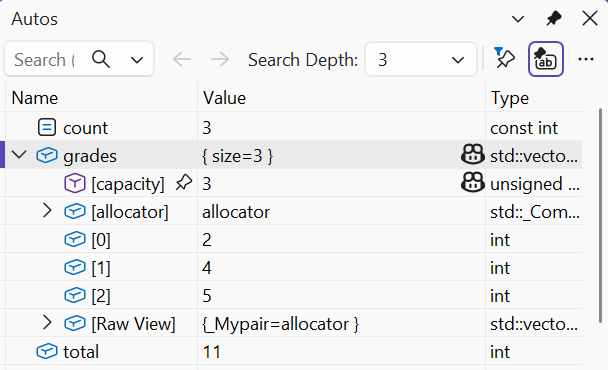
Figure 6.2. A breakpoint and the computed values
A conditional breakpoint lets you break a loop only when i == 7 or another required condition occurs. In the breakpoint’s context menu, choose Conditions…. A tracepoint performs an action such as printing a message without necessarily stopping. This is useful for a long sequence, but excessive logging changes the execution time and creates noise.
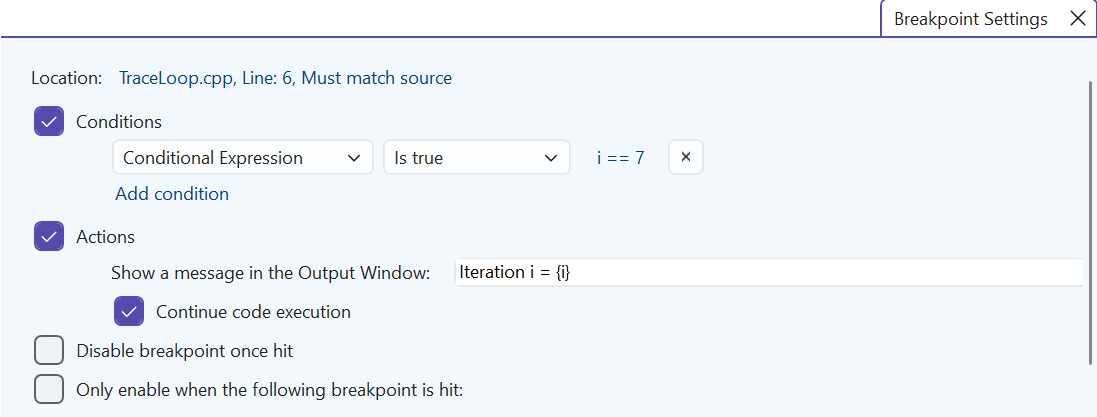
Figure 6.3. A conditional breakpoint and a trace action
Immediate lets you evaluate expressions in the context of the break. Don’t call functions with side effects there without understanding them: a debugger expression can change the state and hide the original cause of the defect. A temporary change of a variable is useful for an experiment, but it is not a fix of the source text.

Figure 6.4. Custom expressions in Watch and Immediate
In Release, the optimizer may eliminate a variable, reorder instructions or inline a function. That is why stepping doesn’t always correspond to every source line. Debugging Release is possible with the appropriate symbols, but for an initial analysis Debug is more convenient. If a defect exists only in Release, check for UB and dependence on uninitialized values.
Diagnostic Tools help you observe resource metrics. They don’t prove an algorithm correct just because the memory graph is flat. Hot Reload and Edit and Continue can apply some changes during debugging, but they don’t support every change to a C++ program. If an edit is not supported, stop, rebuild and repeat the test. An ASan build has separate limitations, described in Topic 5.